


During an SCCM upgrade, you might encounter a failure in the prerequisite check due to a pending system restart error. In this article, I’ll explain the reasons behind this error and provide solutions to resolve it.
When you run a prerequisite check for a new current branch upgrade, Configuration Manager performs a series of checks to determine if the upgrade can be successful. Read this article for a detailed overview of the prerequisite checks involved in installing or updating Configuration Manager.
Fix SCCM Pending System Restart Error
The prerequisite check: pending system restart error occurs when another program requires the server to be restarted before the upgrade can happen. To resolve this issue, you must manually restart the server once.
In the below screenshot, we see that there is an error during the prerequisite check. The update pack installation status reveals that the system restart is pending.
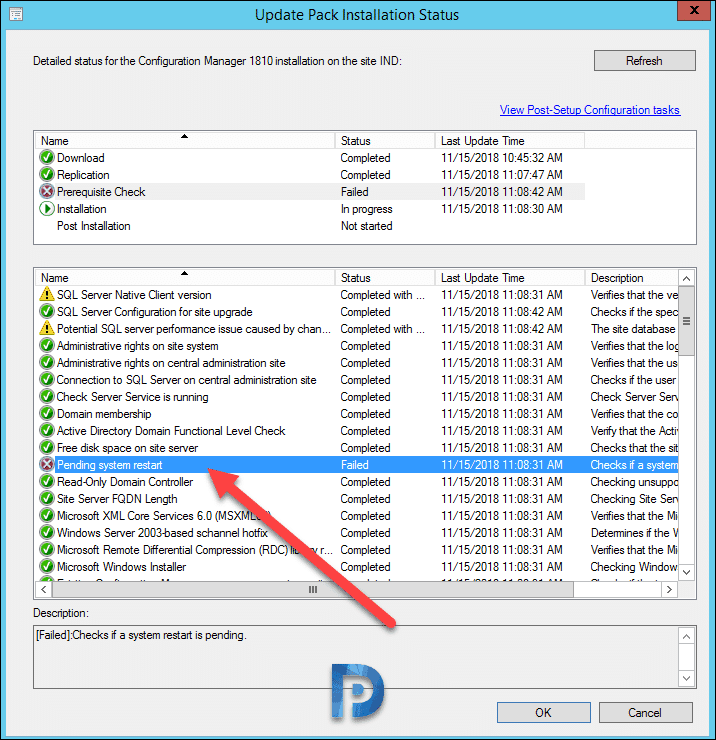
There can be many reasons why a system restart could be pending. To see if the computer is in a pending restart state, it checks the following registry locations:
- HKLM:Software\Microsoft\Windows\CurrentVersion\Component Based Servicing\RebootPending
- HKLM:SOFTWARE\Microsoft\Windows\CurrentVersion\WindowsUpdate\Auto Update\RebootRequired
- HKLM:SYSTEM\CurrentControlSet\Control\Session Manager, PendingFileRenameOperations
- HKLM:Software\Microsoft\ServerManager, CurrentRebootAttempts
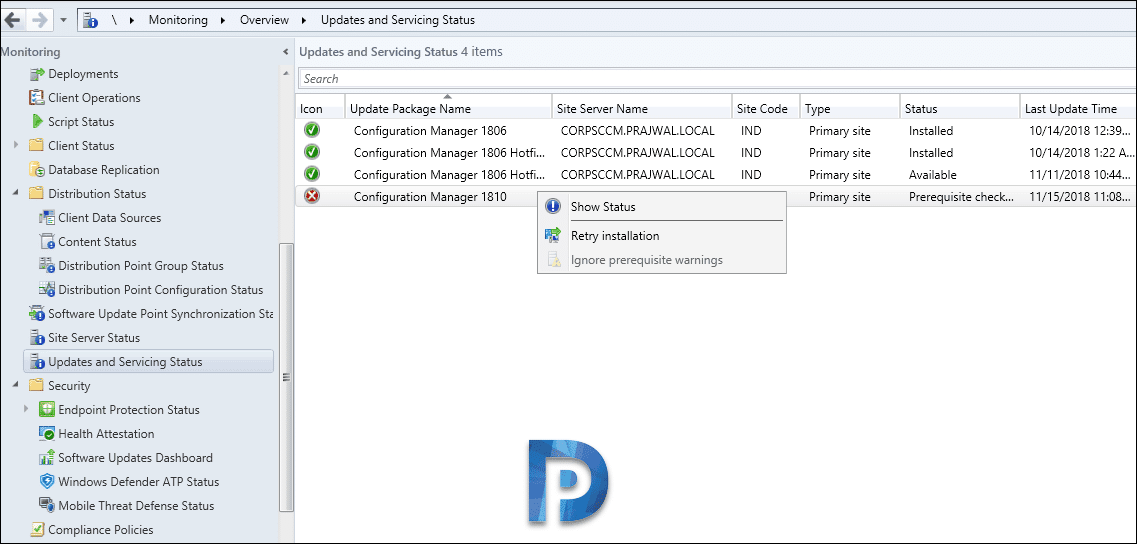
If you see a pending system restart error, the update won’t install. Restart the server first, then launch the SCCM console. Post the restart, launch the SCCM console. Go to Monitoring > Overview > Updates and Servicing Status. Now right click Configuration Manager Update and select Retry Installation.
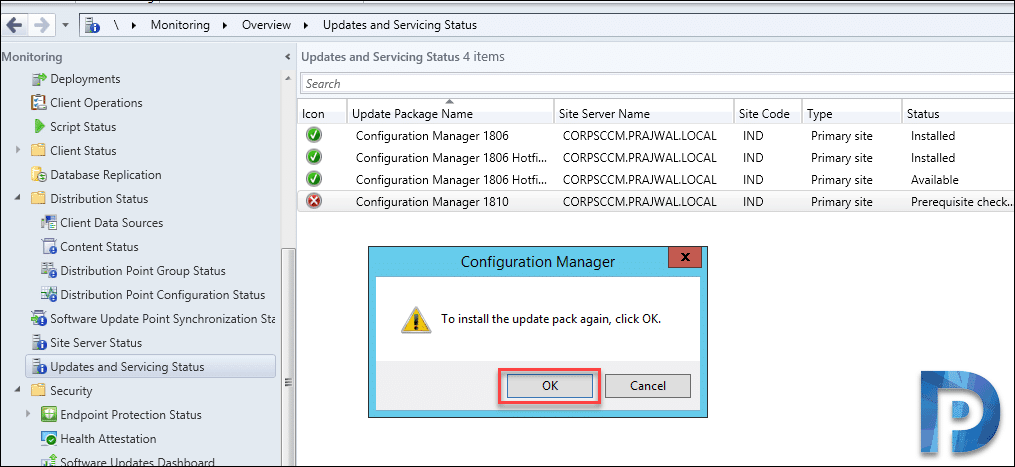
You will now see a dialog box “To install the update pack again, click OK“. Click OK to install the update pack. The update should now be installed without any issues.
Further Reading
Listed below are some common reasons why the upgrade prerequisite check fails and the solution to those errors and warnings.
- The site database has a backlog of SQL change tracking data: Solution
- SQL Server Native Client Version: Solution
- SCCM Update Stuck at Downloading State: Solution
- Enable site system roles for HTTPS or SCCM Enhanced HTTP: Solution
- Recommended version of the Microsoft .NET Framework. Warning: The Configuration Manager 2503 update requires at least DotNet version 4.6.2 but recommends the latest version 4.8: Solution
- ConfigMgr Database Upgrade Error 0x87d20b15: Solution
- Co-Mgmt slider is not pointed to Intune: Solution
- SQL client prerequisites are missing for Config Manager setup: Solution

Hi ,
The Prereq check passed with only SQL Server Native Client warning , can we ignore the warning and continue the installation ?
It’s recommended to update SQL Server Native Client to support TLS 1.2. https://www.microsoft.com/en-us/download/details.aspx?id=50402
Hi ,
The Prereq check passed with only SQL Server Native Client warning , can we ignore the warning and continue the installation ?
I am currently running SCCM version 1810.
While running the SCCM 1810 to 1902 upgrade prerequisite check I received a message that says Prerequisite check passed with warnings.
When I view the prerequisite warnings I see that the only warning is for the SQL Server Native Client version (see the first screenshot).
This warning displays the message below. When I go to the https://go.microsoft.com/fwlink/?linkid=2026746 URL I don’t really see anything that describes what can be done to fix this issue.
[Completed with warning]:Verifies that the version of Microsoft SQL Server Native Client installed on the site server meets the minimum requirements to enable TLS 1.2 support. https://go.microsoft.com/fwlink/?linkid=2026746
When I start the SCCM upgrade the upgrade gets stuck right after the Extract Update package (see the 2nd screenshot).
When I view the CMUpdate.log file I see that “There is site server reporting WARNING in prereq check. Setup will not continue.. CONFIGURATION_MANAGER_UPDATE 7/4/2019 5:24:52 PM 3832 (0x0EF8)” (see the third screenshot).
The versions of SQL that are installed on this SCCM server are shown in the fourth screenshot.
What can I do to fix this error so I will be able to successfully upgrade from SCCM version 1810 to version 1902 ?
Hi Prajwal, I love all your tutorials and they have saved me some headaches plenty of times. I am trying to upgrade to 1810 but it keeps failing in the prereq phase. It fails on the “SQL Server service running account” “SQL Server sysadmin rights” “SQL Server Configuration for site upgrade” “Max text repl size for SQL Server always on availability group.” My primary and my SQL server are separate. I verified that I have the account I am using has admin rights on both servers and I registered the SPN for both SQL servers. I am at a lost as what do next
Hello Prajwal, thank you for all of your articles on SCCM – I knew nothing about the program when we implemented it and your guides have helped me out a lot. I just ran the prerequisite check to update to 1810 and am getting the “site database has a backlog of SQL change tracking data” warning. When I run the commands from the Microsoft Article, I find that my oldest entry is 89 days. When I run the cleanup, it appears to execute successfully but doesn’t seem to actually clean anything up. Running the prerequisite check after this still gives the same warning. Any advise on what to try next?
Yes, i have experienced the same in my lab. I have infact reported this to MS, I haven’t got any response. For now you may skip that warning and install the hotfix.
I’m hoping someone can point me in the right direction. I’m trying to upgrade to 1810 but received the error below. I’ve changed my port but find no place to correct it and running client setup fails. The only successful option is to recover/reset site which I definitely want to avoid. Any suggestions?
ERROR: SQL static TCP port is not set.
ERROR: SQL dynamic TCP port is set to: .
[oursqlserver.fqdn.com]; SQL Server Tcp Port; Error; Configuration Manager primary site and central administration site require SQL Server Tcp is enabled and set to Static port.
Thanks in advance!
Prajwal thanks for your usual support I had a problem in upgrading 1810 prerequisite check failed with error “SQL server configuration for site upgrade ” please advice
What’s the current SQL server version installed ?.
I got also Pending Restart issue – restarting server(s) didnt resolved it. Checked registry items – clear.
Did Shutdown -poweron ( it is VmWare VM) . and after it readines checker goes green.
So – there is something more somewhere.
The solution is restart the server and try again to install the update.
Me too. Restarted Server 3 times. Still fails on same error.
I’m having the same issue – Have you had any luck getting rid of this?
Hi,
After 2 reboots all its OK for me 🙂
Mine needed a reboot on the SQL server. It’s on a different server.
TLS 1.2 points to SQL 2012 and lower, I have SQL 2016 but I am still getting this warning which is odd
Had the restart pending problem even after rebooting several times.
What fixed it for me was going into the registry and taking ownership of:
HKLM:SoftwareMicrosoftWindowsCurrentVersionComponent Based ServicingRebootPending
Gave myself permission to the registry key and deleted it.
Dont reboot. Run the install again.
Big thanks, Ryan. It helped.
I’m getting sql server configuration for site upgrade fails sccm 2016
And what is the error that you see ?.
I had the SQL Native 2012 Client and Reboot prerequisite failures for 1810. Updated the Native client and that cleared, then rebooted a half dozen times but no luck getting the Restart pre-failure to clear.
It would not let me proceed or ignore to bypass and install.
I am running a standalone SCCM server with local SQL on a 2016 Hyper-V VM. The Host is running 2012 R2.
I loaded Hyper-V manager and ran a shutdown (Not a restart but a shutdown) of the VM and saw a “Getting Windows Ready Do Not Power Off” message? What? I thought this was it and that the error would clear but I was wrong. Subsequent restarts showed the “Getting Windows Ready” again so I scoured the Event viewer to see if there were any pending updates. Everything was clear.
After a few hours of waiting/retrying I noticed the “Getting Windows Ready” message was gone when rebooting. Ran the PreRequ scan and PASSED!
I checked Windows Update and the last update installed was KB4483229. Is it possible this was still running/finishing in the background? Probably.
Install is now running.
Thanks for the update Ryan. I know that error is irritating. You may be right, if the update is not installed or needs a reboot to complete it’s installation, the SCCM still shows pending restart message. Microsoft doesn’t clearly say what checks are actually done that determines and alarms pending system restart message.
Hello Prajwal,
thanks for your research. Unfortunately I am not able to establish the admin connection via SQL Management Studio 2014. If I try to connect via SSMS to ADMIN:SCCMSERVERNAME, the (translated) error message reads like “Dedicated admin connections via SSMS are not supported, because programmatically multiple connections are established…”
Any idea how to establish this connection via SSMS? Unfortunately, in the Microsoft article there is no detailed description.
Thank you in advance, best wishes from Germany, Markus
There’s now a missing step with making this connection. You don’t do it directly from entering SSMS. You first open SSMS, connect to the database and then use the ‘Database Engine Query’ icon to connect to the admin: instance and then you can run the queries
You probably have already figured this out, but for others who come across this – you must close the initial “Connect to Server” authentication box when you open SSMS. Then, from the bar at the top to the right of “New Query” open a Database Engine Query. This will open a new authentication window, but it will allow you to login to a DAC connection.
One thing I would add as a reminder — If you have separate SQL Database / Primary Site servers, you need to update the Native Client on the Site Server, not just the SQL server.
That’s right Daniel
Pending restart is still failing after tons of reboots. How can we force the install. Everything else passes. I also checked all the registry keys that would signal file rename ops etc…… This is frustrating
I had faced this in my lab setup. I ensured that i rebooted the server just before installing the update. However did you retry the installation by ignoring the prerequisites ?.
I’ve restarted my site server, but the prereq check is still failing saying a system restart is pending. I’ve already updated my Windows 10 ADK and installed the updated SQL native client. I’ve probably restarted the server a total of 3 times now. No windows updates are pending.
It could be something else that requires a reboot. But what you can do is you can reboot the server and retry the update installation.
Probably also worth noting that the Pending Restart prereq needs to be fulfilled on all Site Servers in the Site; so do check if your SQL DB or remote site servers need a reboot as well.
You are correct. Thank you so much.
Thanks.. Initial I thought, just need to reboot site server. However, even I need to reboot database server to get rid of reboot alert.
Glad you figured that out.
can you show step by step how to get rid of that warning about sql backlog?
doesnt seem to work for me:(
Doesn’t work for me neither.
I’ve executed the command from the KB. No errors. All seems fine. But I still get the same warning.
I have tried fixing that for hours in my lab setup but it didn’t work for me. I have reported this issue to MS Product team and they are working on it.
Not working for me either. Have you received anything from the MS Product team?
Prajwal- Great walkthrough. I was able to update to 1810 and updated our ADK to ver10.1.17763.1 and distributed our boot images to all DP’s. Now when we Pxe a device, we are no longer presented with any of the task image options. I reviewed the smspxe log and I can see where the unknown device is initiating the pxe sequence but it is as if no task sequences are present or available.
Have you come across situations like this in the past?
Try unchecking PXE and enabling it back. Else report this issue on community forums and I will sort this.