


In this blog post, I will show you how to modify the Group Policy refresh interval for Windows computers. Group Policy is an essential feature in Windows that allows administrators to manage settings and configurations for users and computers in an Active Directory domain environment.
By default, Group Policy refreshes every 90 minutes with a random offset of up to 30 minutes for computers. However, there may be situations where you need to modify the refresh interval to ensure group policies are applied more frequently or less often, depending on your organization’s needs.
From my experience, I can tell you that organizations usually set the GP refresh interval time from 90 – 120 minutes. Shortening the GP refresh interval can help you test new policies faster, but it can cause excessive network traffic and impact on performance. On the other hand, setting a higher value for group policy refresh interval can reduce network traffic and load on domain controllers in large environments.
What is Group Policy Refresh Interval?
The Group Policy refresh interval determines how often a computer or user checks with the Active Directory domain controller to update its policies.
If you have worked on Configuration Manager, it’s more like configuring the client policy polling interval. And if its Intune, I would say it’s more like configuring policy sync interval for clients.
If you haven’t configured the group policy refresh settings, let me provide you with the default settings.
- Computers: Every 90 minutes, with a random offset of 0–30 minutes.
- Domain Controllers: Every 5 minutes.
- Users: Same as the computer refresh interval.
Modify Group Policy Refresh Interval for Windows computers
Let’s create a GPO to configure the Group Policy Refresh Interval for Windows computers. Login to the domain controller with an administrator account. Launch the Server Manager and open the group policy management console. Right-click Group Policy Objects and select Create a new GPO. Specify the GPO name as “Modify Group Policy Refresh Interval” and click OK. Edit this GPO to open the policy editor.

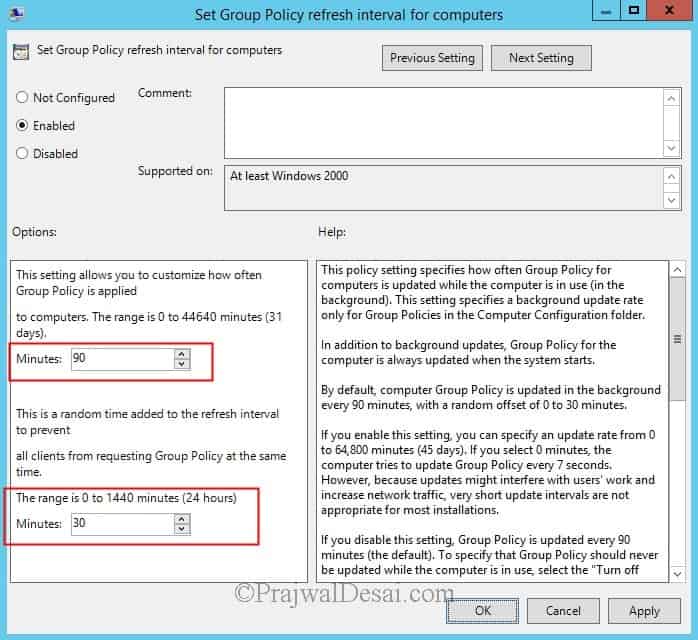
In the GPMC Editor, navigate to Computer Configuration > Policies > Administrative Templates > System > Group Policy. Edit for the policy “Set Group Policy refresh interval for computers” and select Enabled.

Once you enable this policy, there are two options that you must configure. You can adjust Group Policy refresh period based on your organization requirements.
- Customize how often group policy is applied: This setting specifies how often Group Policy for computers is updated while the computer is in use (in the background). The accepted range for GPO update interval is 0 to 44640 minutes (31 days).
- Modify refresh interval: The next setting lets you specify the random time for the refresh interval to prevent all clients from requesting group policy at the same time. The accepted range is 0 to 1440 minutes (24 hours).
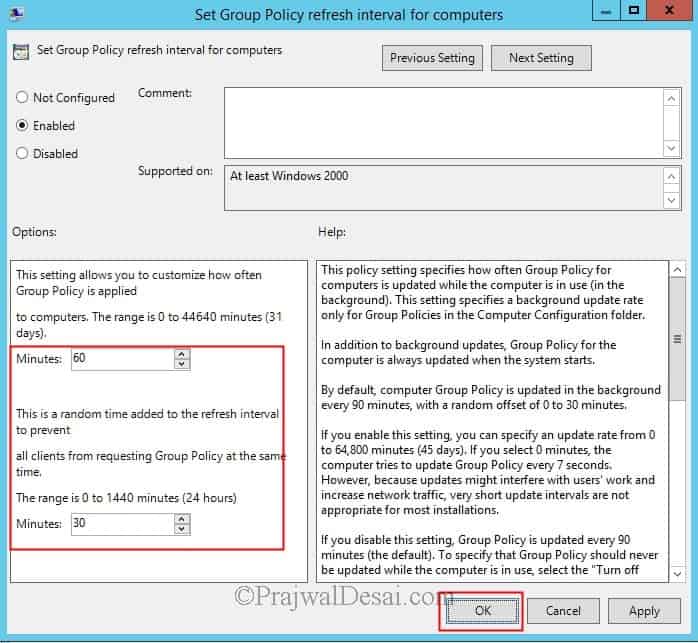
In my case, I have set the Group Policy update frequency to 60 minutes and the random offset value to 30 minutes. Click Apply and OK. Close the group policy management editor.
Link the GPO to OU
To apply the GP refresh interval settings to your computers, you need to link the GPO to an OU. I recommend applying the modified refresh interval to specific groups or organizational units (OUs) rather than the entire domain.
To link the GPO, right-click an OU or your AD domain in the Group Policy Management console and choose “Link an Existing GPO.” In the Select GPO window, choose the Modify Group Policy refresh GPO and click OK.
Run GPUpdate
Run the command gpupdate /force on the client computer to force a group policy update. I wrote an article on different methods to update group policy on remote computers, which can be helpful here. On the Windows 11 computer, launch the command prompt as administrator and run the command “gpupdate /force.” This will force an update of all the policies applicable to the computer.
Verify the GP Refresh Interval Settings
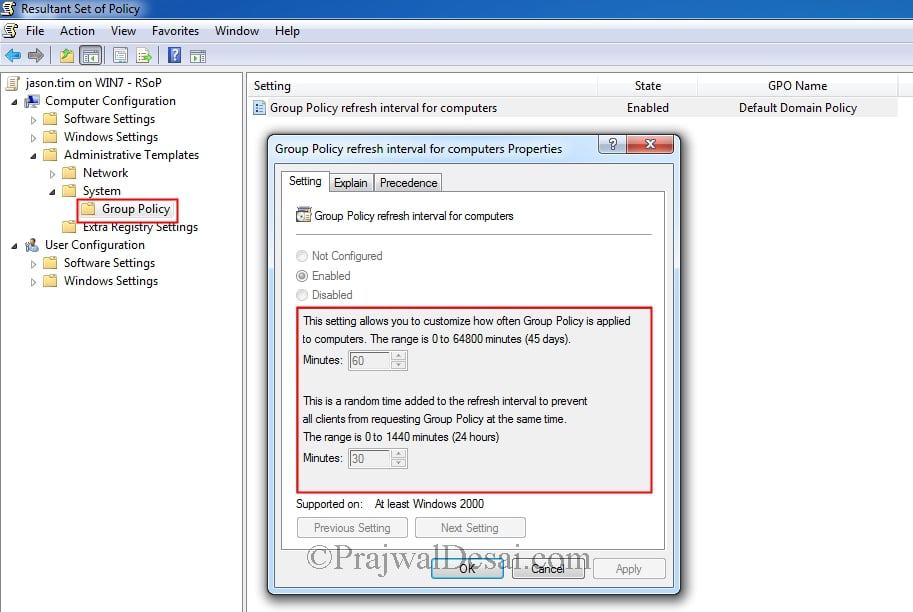
To verify if the modified GPO refresh interval settings are successfully applied to the client computers, sign in to a Windows computer. Right-click Start and select Run. Enter “rsop.msc” and press the Enter key. The Resultant Set of Policy window should appear.
Navigate to Computer Configuration > Administrative Templates > Group Policy. On the right pane, open the Group Policy refresh interval policy setting and here you should see the newly configured group policy refresh settings for computers.
The screenshot below verifies that the refresh settings and values align with the configurations specified in the GPO. These settings are locked and cannot be altered by the end user.
Conclusion
I hope this guide helps you to change Group Policy refresh interval effectively for Windows computers in your setup. Modifying the Group Policy refresh interval can be a powerful tool for administrators to control how frequently policies are updated. Whether you’re troubleshooting, applying critical updates, or optimizing performance, you can easily adjust the interval using a GPO.

Does this setting affect all Computers in the Domain, in the Forest, or just in the OU where it’s linked and to its children OUs not blocking inheritance?
Great one Prajwal, Thanks