


In this post I will show you how to configure SCCM firewall rules and exceptions. Configuration Manager uses defined network ports and exceptions for client push that must be allowed in the firewall for the communication to occur.
Before you install the Configuration Manager in your site, it is important to understand what ports are utilized and what needs to be allowed in the firewall. The firewall rules and exceptions required for SCCM are not limited to clients but also include other components such as SQL Server, software update points, management points, and so on.
During my SCCM consulting, I frequently encounter issues such as client push installation failures, clients failing to retrieve policies from the management point, clients failing to download updates from SUP, and many others. All these issues occur due mostly to the firewall rules and exceptions that aren’t in place.
I have also seen many cases where a Windows Firewall is simply turned off on both Management Points and client computers. This is not a best practice for any organization and this puts both your SCCM servers and client computers at risk. A firewall protects your device and you should never turn it off or disable the service.
Firewall Ports used in SCCM
I have published a guide on Configuration Manager Firewall Ports that includes a list of all the firewall ports used in SCCM. To make it easier to understand, I have grouped the SCCM firewall ports according to the components, roles, and the direction in which they must be opened.
Configure Firewall for SCCM Client Push
The Client push installation method lets you install Configuration Manager clients on remote devices from the console. The client installation can fail if the client is running a firewall that is blocking the ports being used by the installation process.
To successfully use client push to install the Configuration Manager client, you must add the following exceptions to the Windows Firewall:
- File and Printer Sharing
- Windows Management Instrumentation (WMI)
Let’s go through the steps for creating a new SCCM firewall policy for client push to allow the above exceptions in the firewall.
Create Inbound Rule – File and Printer Sharing Service
We will create an inbound and outbound rule and add File and Printer Sharing Service as an exception in the firewall . Next, we will create an inbound rule to allow WMI. To create SCCM firewall rules, we will make use of group policy.
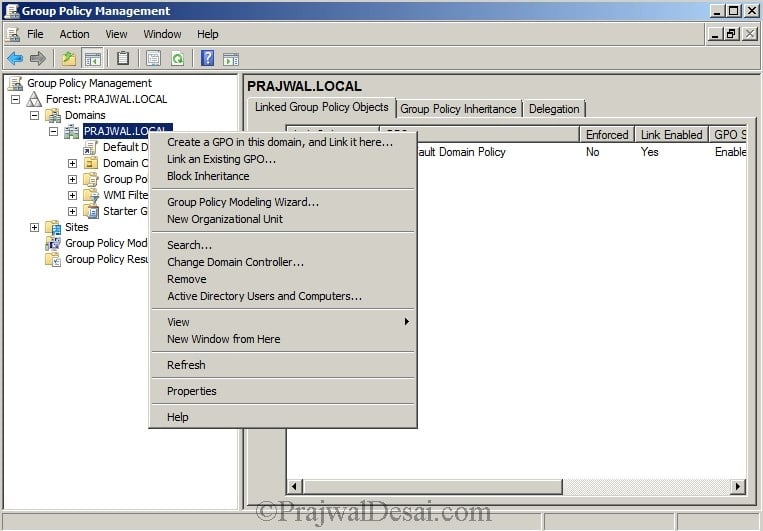
Sign in to the domain controller server and launch the Group Policy Management console. Expand the domain, right-click your domain and select Create a GPO in this domain and link it here.
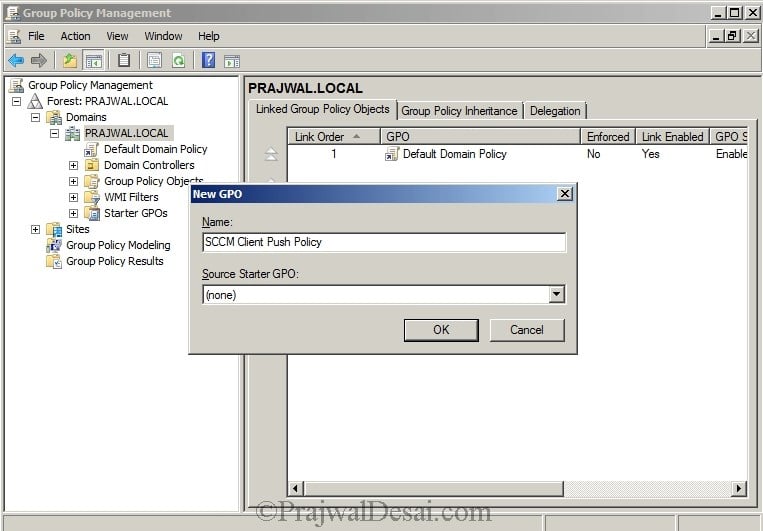
Specify the GPO name as SCCM Client Push Policy. Click OK. Right-click the policy and select Edit.
In the Group Policy Management Editor, expand Computer Configuration > Windows Settings > Security Settings > Windows Firewall with Advanced Security. Right-click on the Inbound Rule and select New Rule.

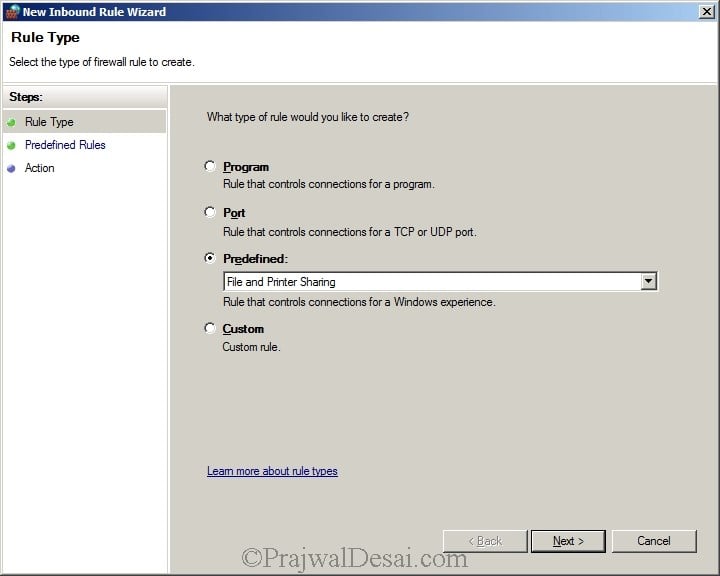
On the Rule Type window, select Predefined rule and click the drop-down and select File and Printer Sharing. Click Next.
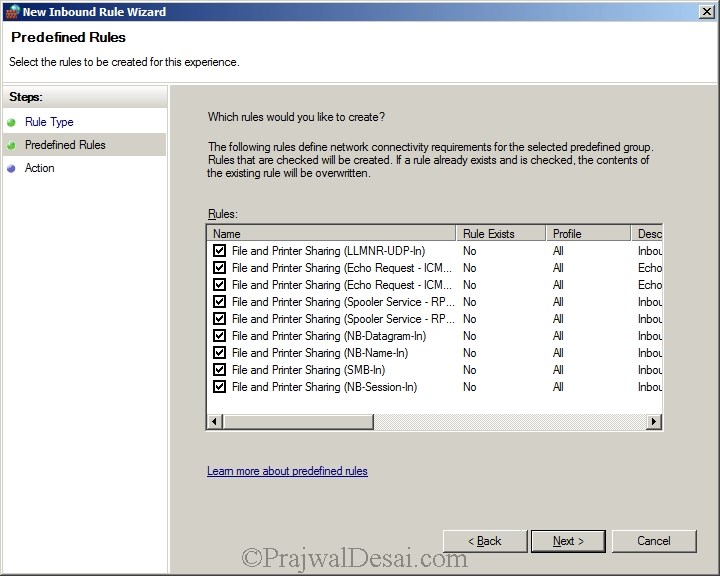
Select all rules for File and Printer Sharing and click Next.
Check the radio button Allow the Connection and click Finish.
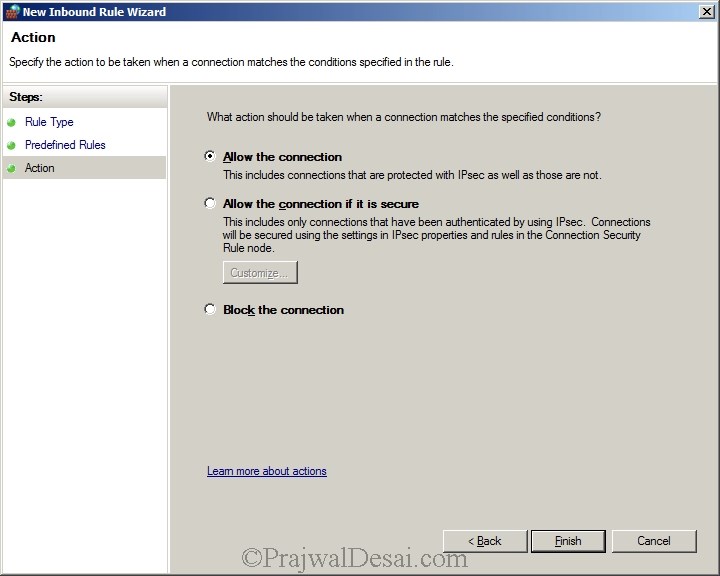
Our inbound rule is now created.
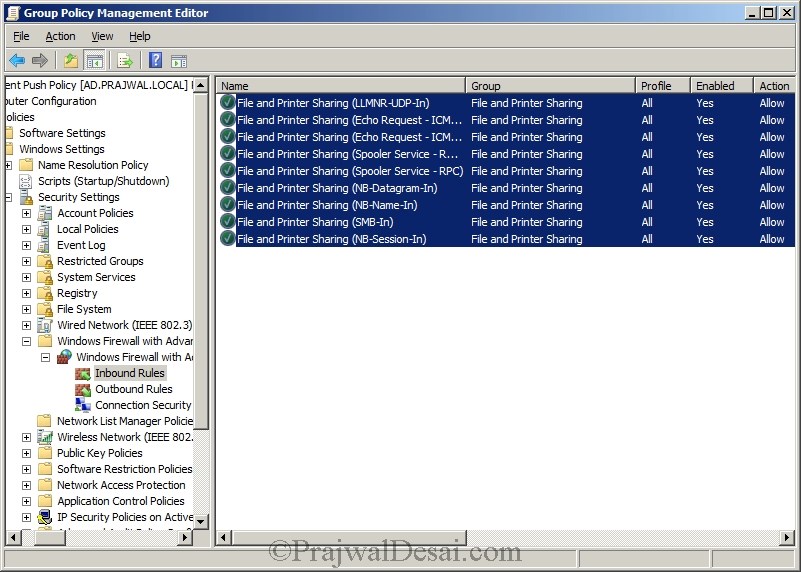
Create Outbound Rule – File and Printer Sharing Service
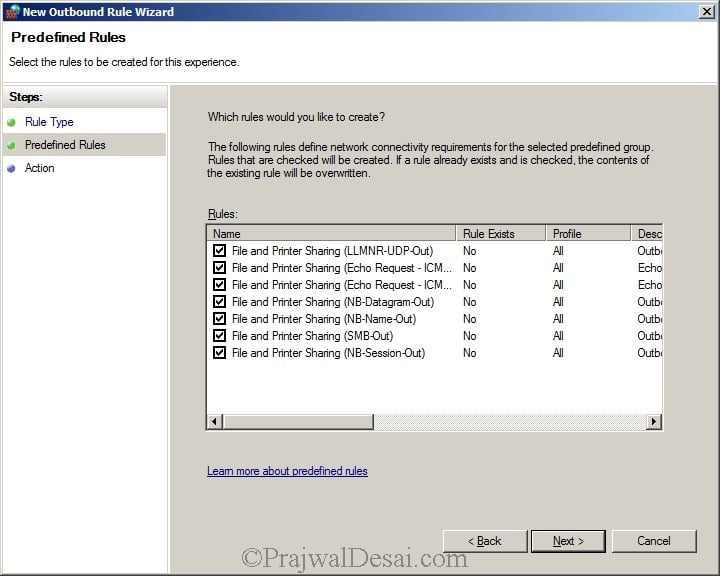
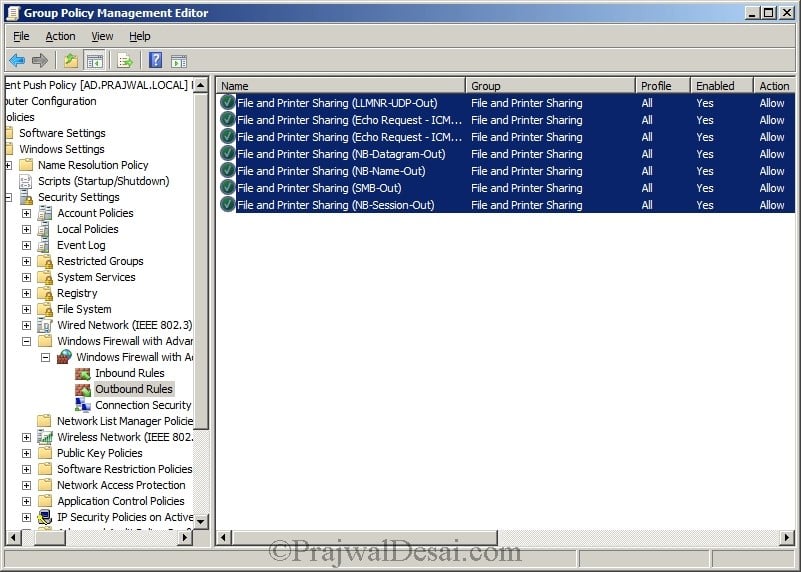
Now we will create an outbound rule for the same.

Make sure all the rules are selected. Click Next.
Select Allow the Connection. Click Finish.
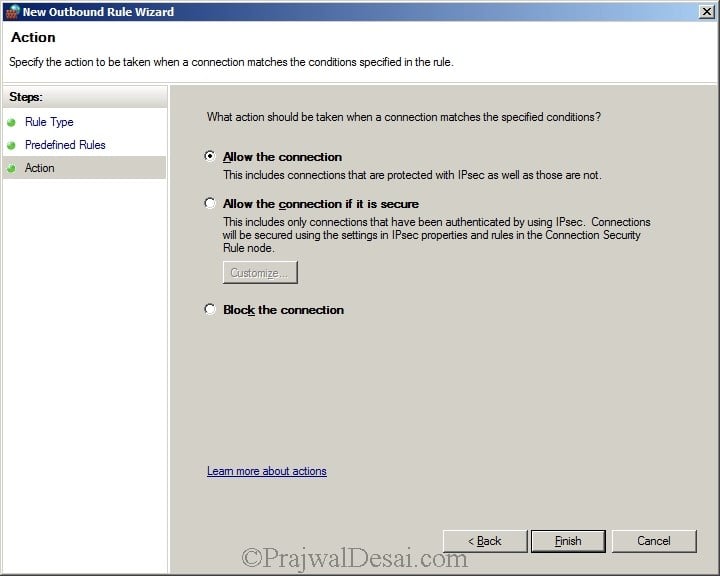
We have created a rule to allow the file and printer sharing outbound in Windows Firewall.
Create Inbound Rule – Windows Management Instrumentation
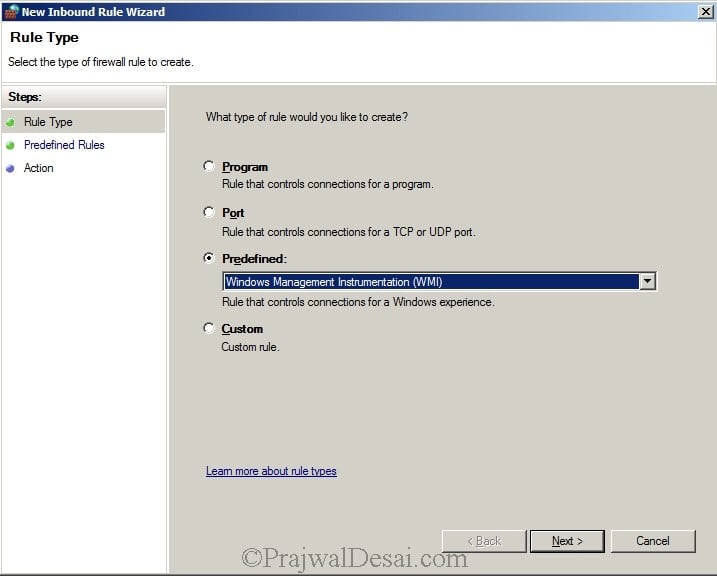
Now we will create an Inbound Rule to allow Windows Management Instrumentation in the firewall. Create an inbound rule selecting Windows Management Instrumentation from the predefined list of programs. Click Next.
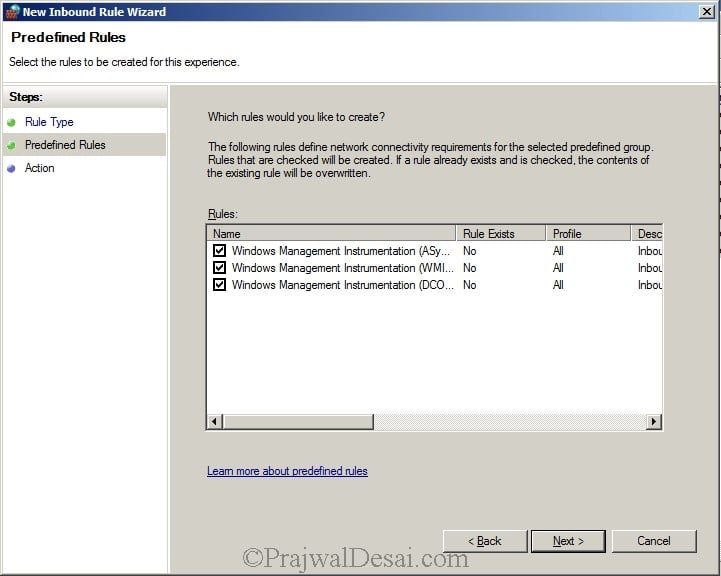
Check all the WMI rules and click Next.
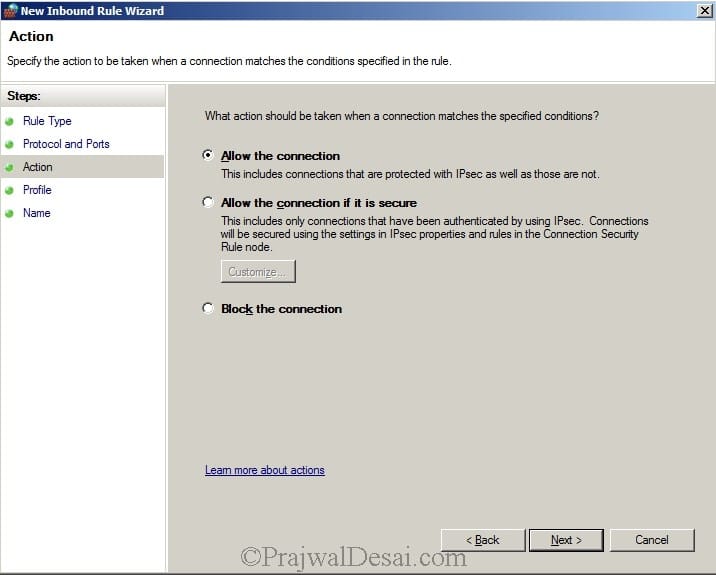
Allow the connection. Click Next. Specify the rule name for WMI exception and close the wizard.
Create SCCM Firewall Policy for SQL Ports
Next we will create an SCCM firewall policy for SQL ports. Basically, we will create a GPO to open TCP ports 1433 and 4022 for SQL replication via Windows Firewall.
By default, Microsoft Windows enables the Windows Firewall, which closes port 1433 to prevent Internet computers from connecting to a default instance of SQL Server on your computer. Connections to the default instance using TCP/IP are not possible unless you reopen port 1433.
Open the Group Policy Management console. Create a new policy and name it as SQL Ports for SCCM. Right-click the policy SQL Ports for SCCM GPO and click Edit.
In the Windows GP management console, expand Computer configuration, Windows settings, Security settings, and Windows Firewall with advanced security.
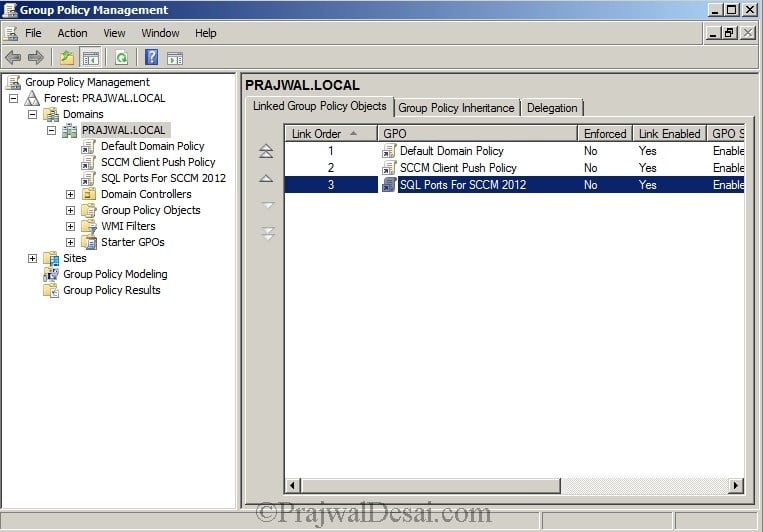
SQL Ports for SCCM – Open TCP Port 1433
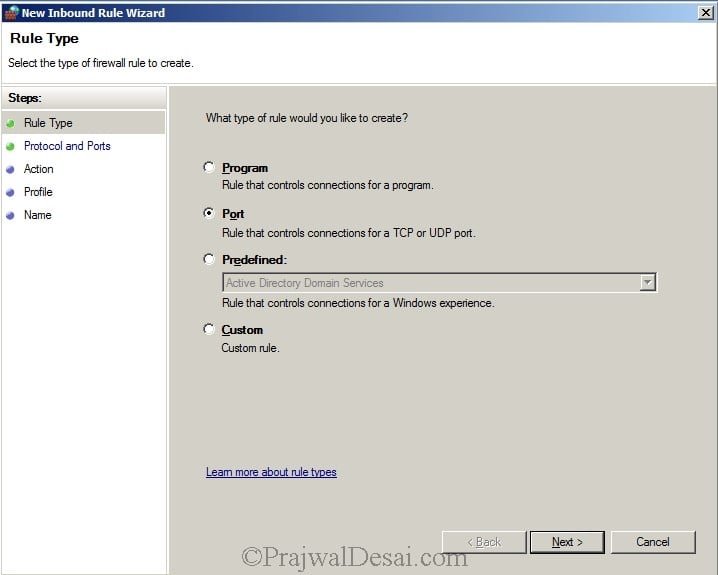
In this step, we will create an inbound rule and add port 1433 to allow it through the firewall. Right-click Inbound Rules and select Create New Rule. On the Rule Type window, select rule type as ‘Port‘ and click Next.
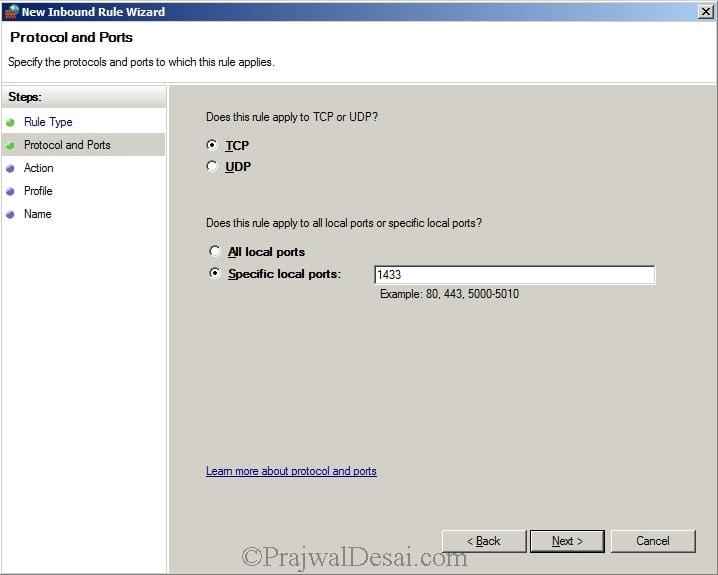
Select TCP protocol and specify port number 1433 in specific local ports. Click Next.
In the Action tab, click Allow connection and click Next.
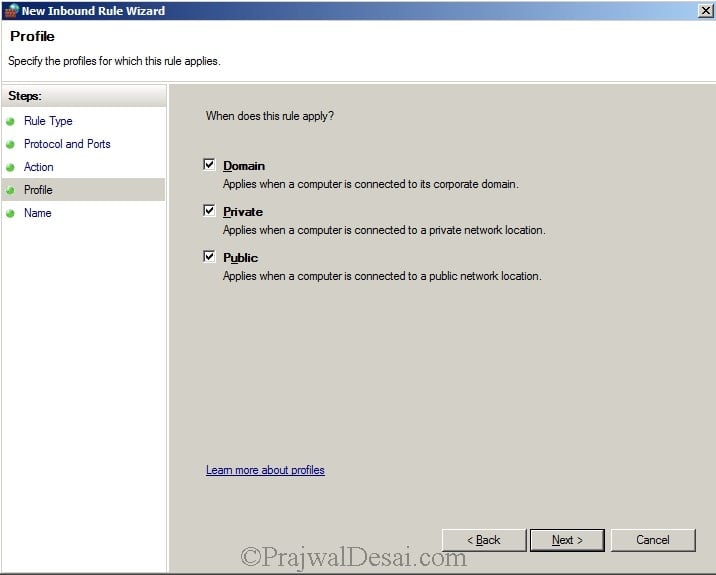
The firewall rule will be applied for all the 3 profiles. Click Next.
- Domain
- Private
- Public
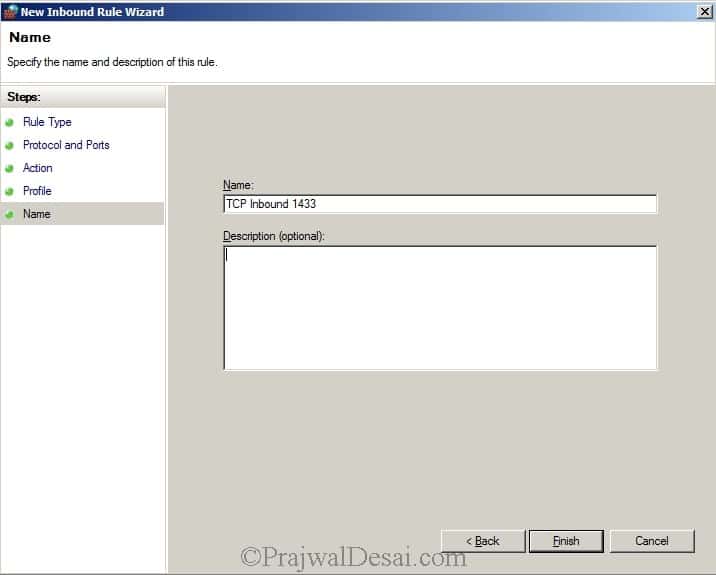
Enter the rule name as TCP Inbound 1433 for identification. Click Finish.
SQL Ports for SCCM – Open TCP Port 4022
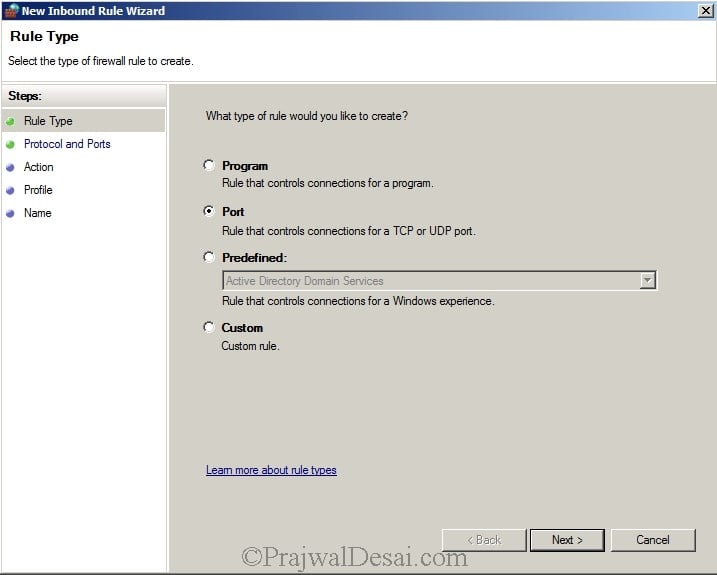
In this step, we will add an inbound rule to allow the TCP port 4022 in the firewall. Right-click Inbound Rules and select Create New Rule. Choose the Port from the list of options and click Next.
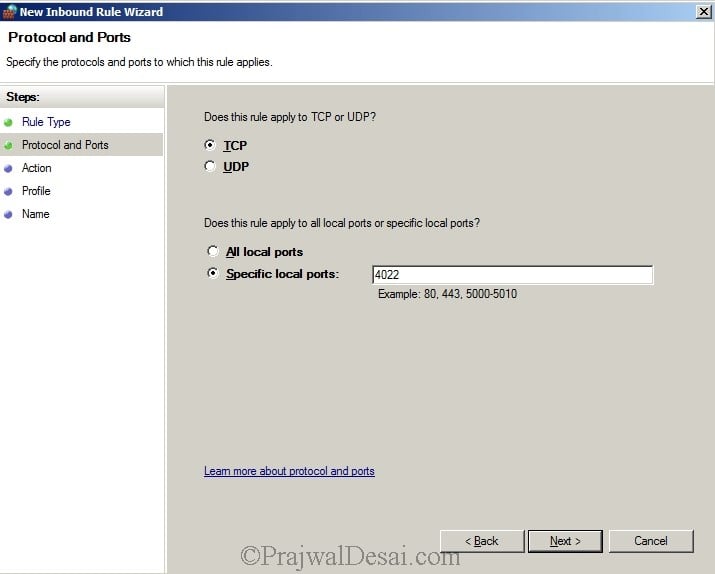
Choose the Protocol as TCP and specify the port number as 4022. Click Next.
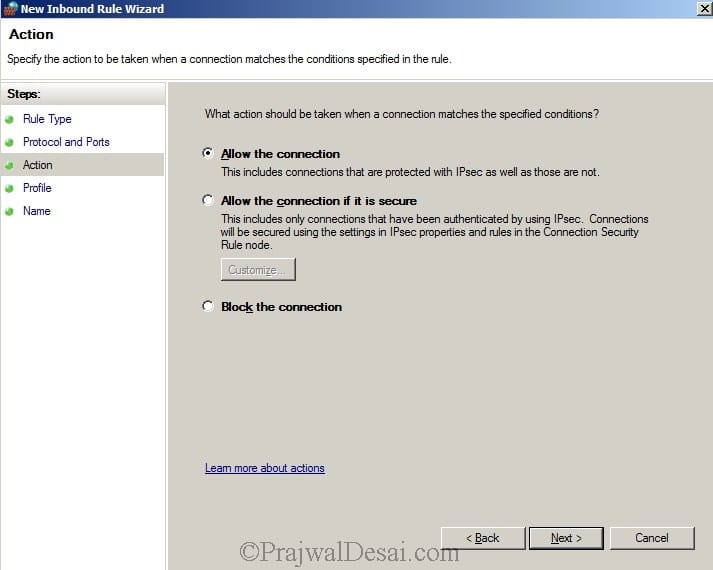
Choose Allow the connection.
This rule applies to all 3 profiles; click Next.
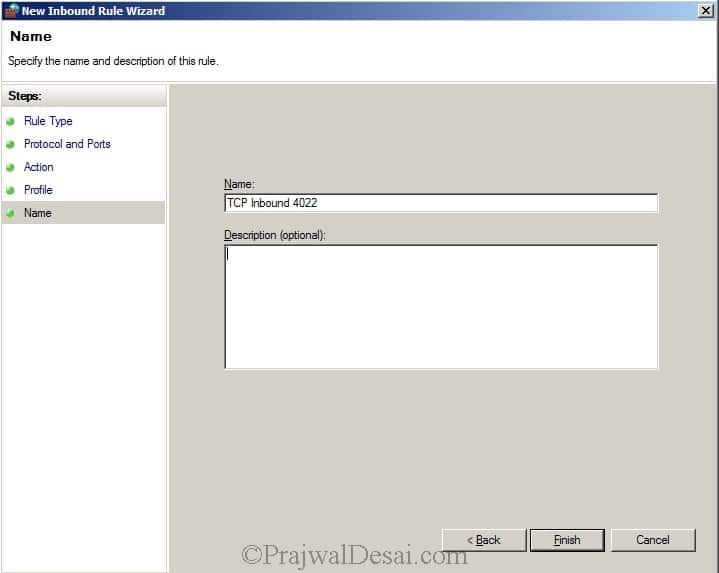
Enter the rule name as TCP Inbound 4022 for identification. Click Finish.
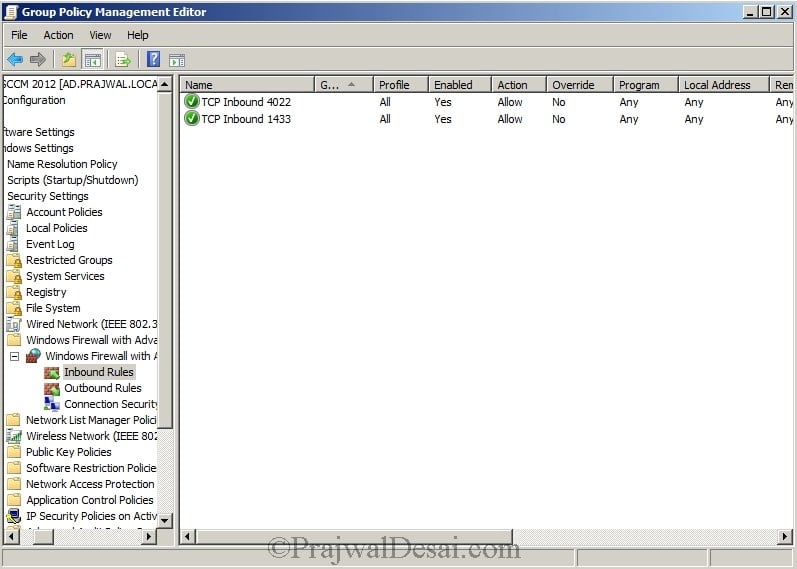
The inbound rules that we created for SQL Server ports are now listed under the Inbound Rules section of the firewall. That’s all you need to configure as SCCM client push firewall ports and exceptions.

Hi PD sir , I rajendra, i have a problem on my system…
when ever i install sql server on windows server 2016. It shows domain controlling warning message. In that warning message was Installing sql server on a domain controller is not recommended….what can i do… please solve my problem…Due to this effect my MECM doesn’t configured….
thank you
please cloud you tell my the steppes in order to Configuring Firewall for Client installation on windows 8.1 ?
thank you
what steps for Configuring Firewall for Client installation on windows 8.1 ?
thank you
can i make all this firewall rules in sccm2012 server only or must be put in group policy ? why?
and if group policy what ou does the sccm 2012 server hosted and the client machine also what ou they will be hosted and if this group policy applied also in ou hosted client machine
thank you
The firewall exceptions must be configured through a group policy. It’s done on a domain controller and the policy is created at the domain level so that all the domain computers are enforced with this policy.
I have configured updates with SCCM, here is my problem:
1) Clients not getting updates
2) SCCM is not getting updates from Microsoft. Sync failing.
How can I determined whether the problem is the WSUS server (not configured correctly, writes issue, incorrect ports used, group policy wrong etc…..) or the Clients ?
Background: I am a tech (responsible only for pc’s in my company) I did not setup the WSUS or SCCM server. I need to prove to our Network Admin that the problem is with the server not my pc’s. I have verified that SCCM is setup for updates correctly. Your help appreciated.
we have a test lab where we have only one primary server and and windos 8 client now my requirement is
Requirements
1. As part of patching, we will not create a package for windows updates and deploy it to collections.
2. Also we didn’t want to download the updates and save it locally in our WSUS Server. Windows clients will download the updates from Microsoft directly, but we have to keep track/record of updates installed to client machines using SCCM server.
I don’t think you can generate reports of windows updates installed on client computers through SCCM if the updates have been pushed through WSUS server and not through SCCM server. There is a way to check whether a specific update has been installed on client computer and that is through creating a DCM rule (SCCM 2007) or configuration baseline in SCCM 2012. Let me try this in my lab setup and i will get back to you soon..
Does port 1433 and 4022 need to be open for the entire domain? Or just for the SCCM/SQL server? I see the need for WMI and File and Print sharing but not the SQL replication ports.
I would recommend to open the ports using group policy for entire domain. SQL replication ports TCP 1433 and 4022 must be opened because these are required to access SQL and for SQL to replicate to other SQL servers. WMI and File and Print sharing services must be enabled. Both the steps are shown in the post.