

In this tutorial, I’ll show you how to create an alert policy in Microsoft Purview Compliance Manager. Alert policies are super useful for monitoring and notifying you about significant events in Compliance Manager. You can create or modify policies, change their activation status, and control alert frequency and severity in MS Purview.
Cloud administrators familiar with MS products like Configuration Manager, Windows 365, Microsoft 365, or Intune understand the importance of alerts. These alerts are crucial for administrators as they provide notifications about significant events and enable further actions based on the alert details.
For example, you can set up compliance manager policy alerts to inform you when an improvement action’s score value has increased or decreased due to a configuration change in your tenant. Or when an improvement action has been assigned to a user to perform implementation or testing work.
Components of a Alert Policy in Purview
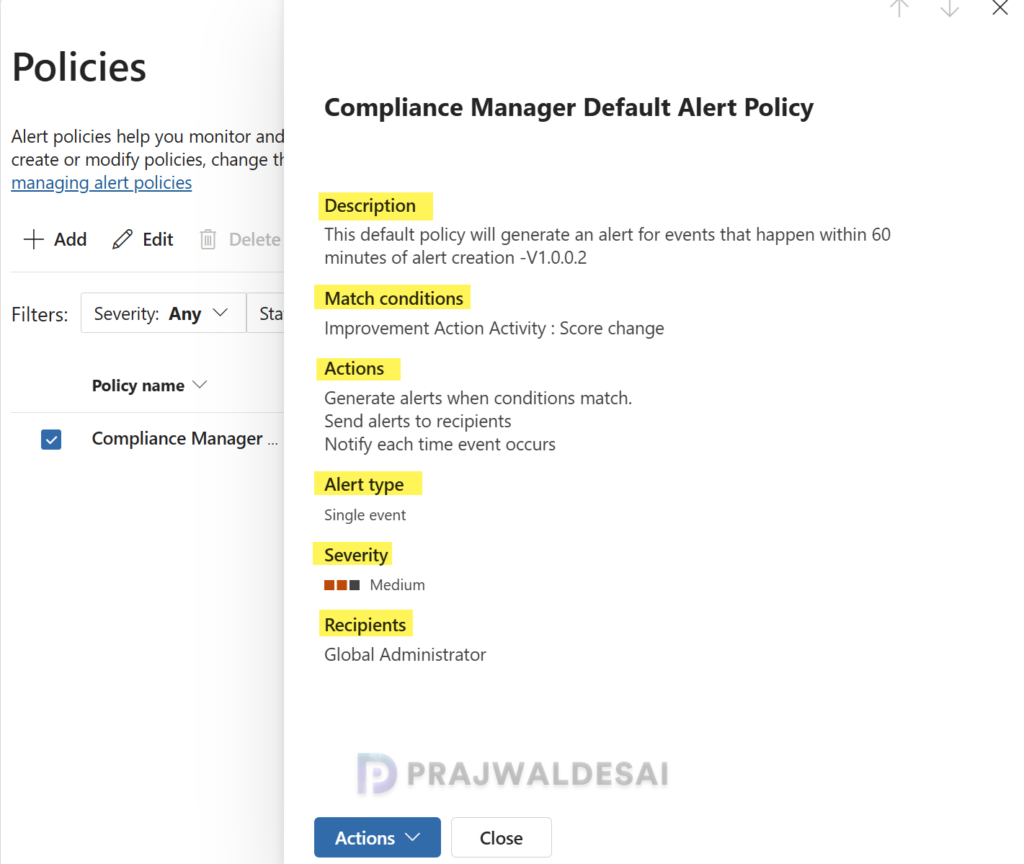
From what I know, when you create a new policy or edit an existing alert policy in Microsoft Purview, it includes the following components.
- Description: The description or purpose of the policy.
- Match conditions: Specify the conditions that will trigger alerts for this policy. Any condition match will enable this policy to generate an alert.
- Improvement Action Activity: In essence, it is one of the alert event kinds that are discussed in the next section.
- Actions: The behavior of an alert policy when the conditions match and you choose what action needs to be taken.
- Alert Severity: Choose between High, Medium, or Low.
- Alert Recipients: Specify who you want to email whenever the alert is triggered.
You can see what an alert policy is made up of in the image below, where I have selected the Compliance Manager default alert policy pre-defined by Microsoft.
Alert event types
This section is important, as I have outlined the event types you need to select when setting up an alert policy in Compliance Manager. Each event type serves a specific purpose in deciding which conditions will trigger alerts for this policy. Therefore, ensure you review the description before making a selection.
- Score change: An increase or decrease in points awarded for an improvement action due to configuration changes made by someone in your organization. For instance, if your organization creates an insider risk management policy, that could increase your points for a certain action by a certain amount.
- Assignment change: An improvement action has been assigned to a user, reassigned to a different user, or unassigned from a user.
- Implementation status change: A user has changed an improvement action’s implementation status.
- Test status change: Triggers the alert when a user has changed the testing status of an improvement action.
- Evidence change: A user has uploaded or deleted an evidence document in the Documents tab of the improvement action.
Create an Alert Policy in Purview Compliance Manager
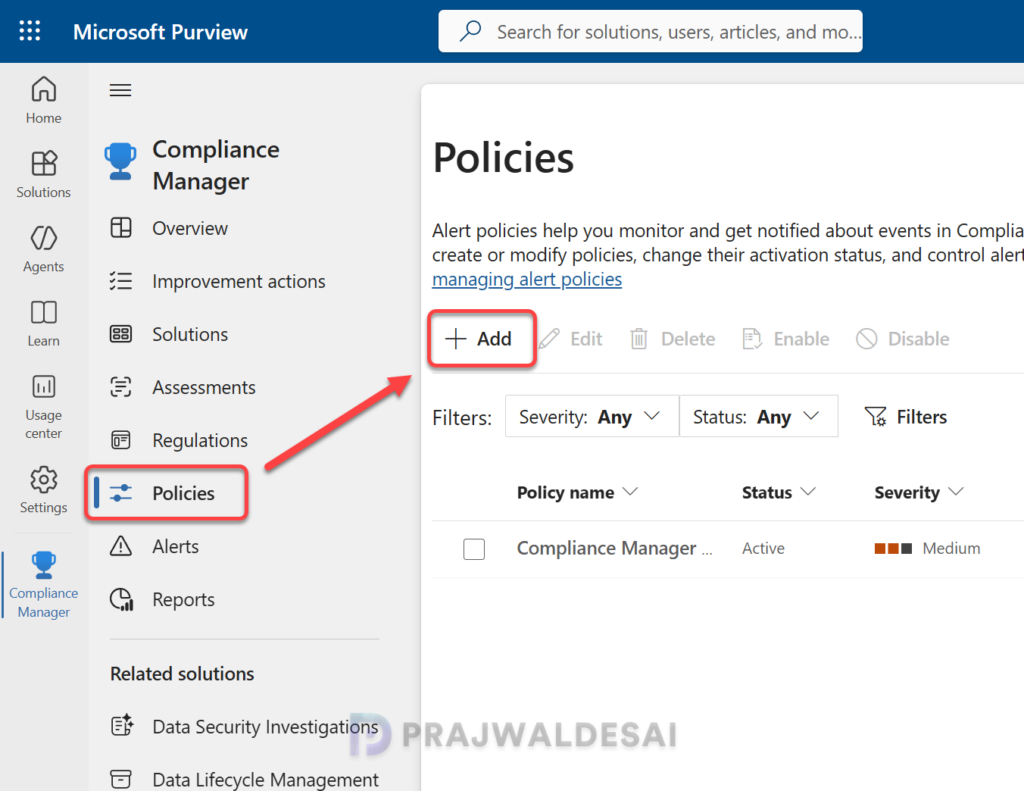
To create a policy to generate alerts based on one or more events in Microsoft Purview, sign in to the Microsoft Purview portal. In the left pane, select Compliance Manager > Policies. Select Add to start the policy creation wizard.
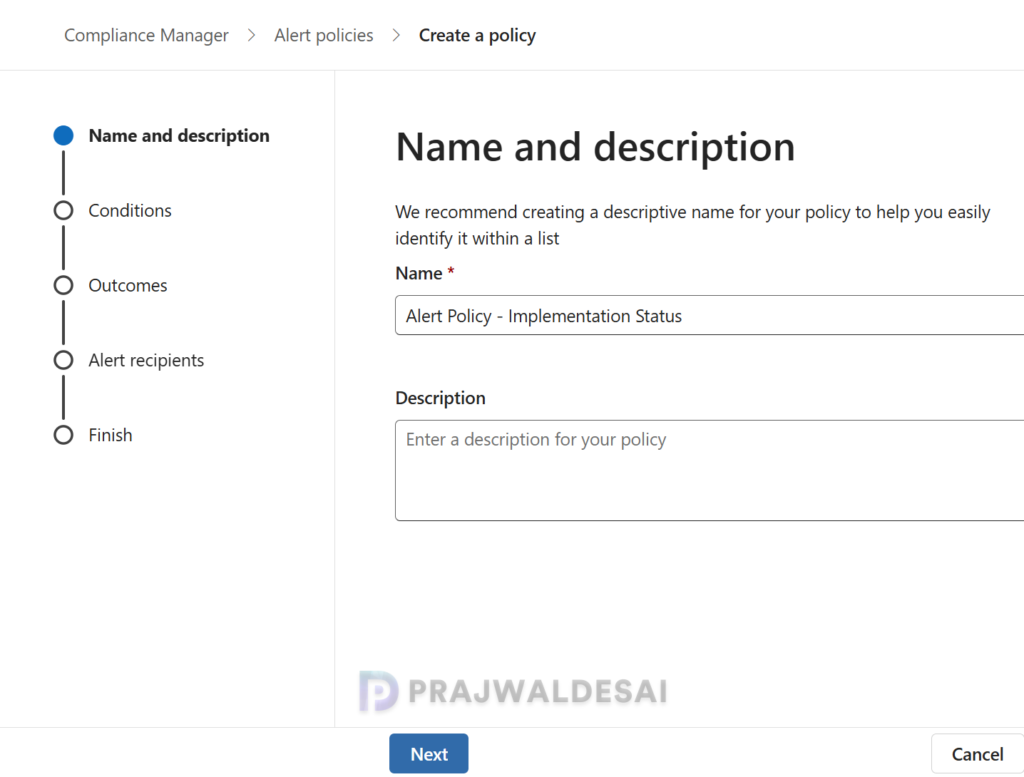
On the Name and description page, enter a name for the policy and an optional description, then select Next.
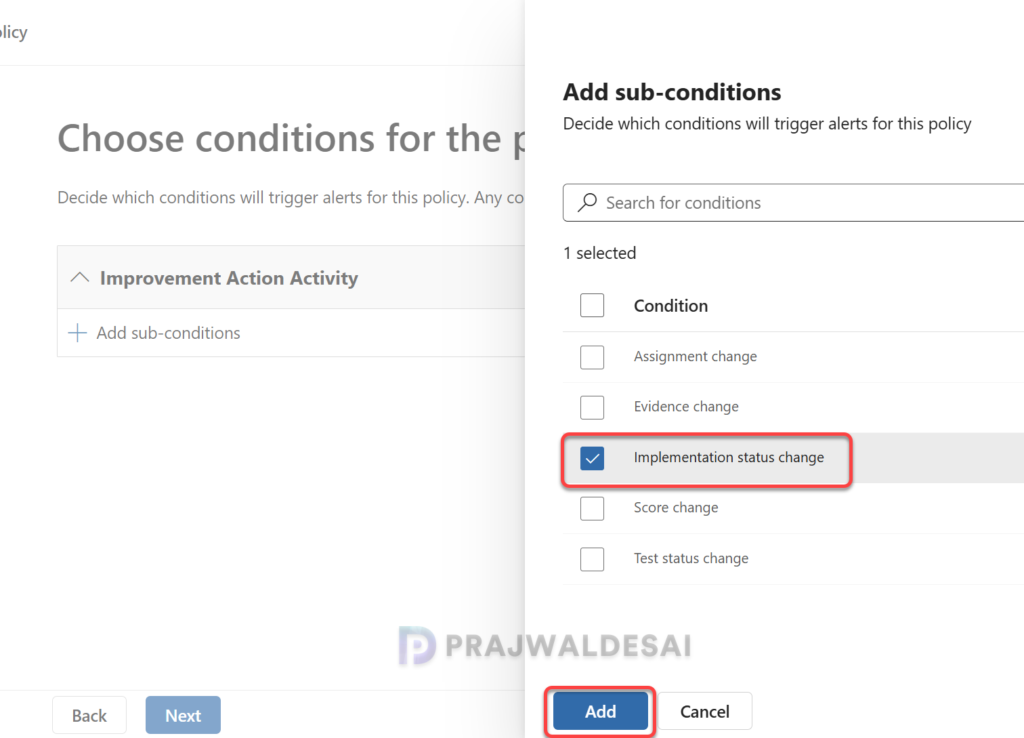
Under the Improvement action activity, click on Add sub-conditions. Choose one or more conditions for a policy: assignment change, evidence change, implementation status change, score change, or test status change, and click Add. When done, select Next.
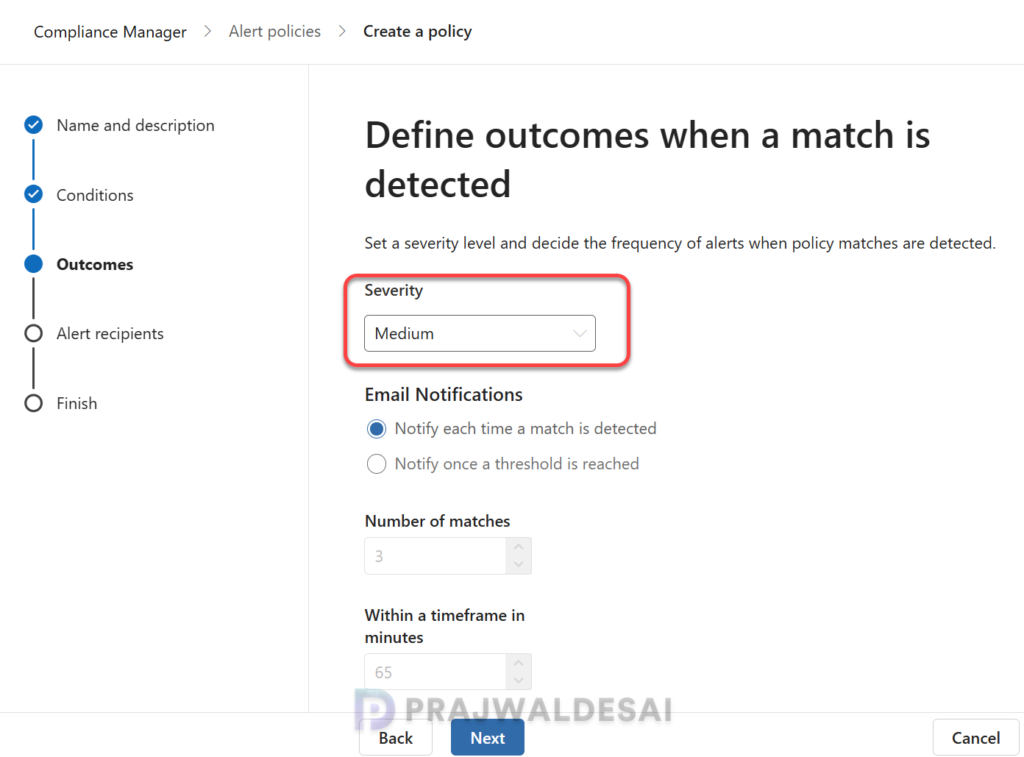
On the Outcomes page, select a severity level for the alert when a match is detected. For email notifications, you can select to be notified with each match or select a threshold of a certain number of matches above three. Click Next.
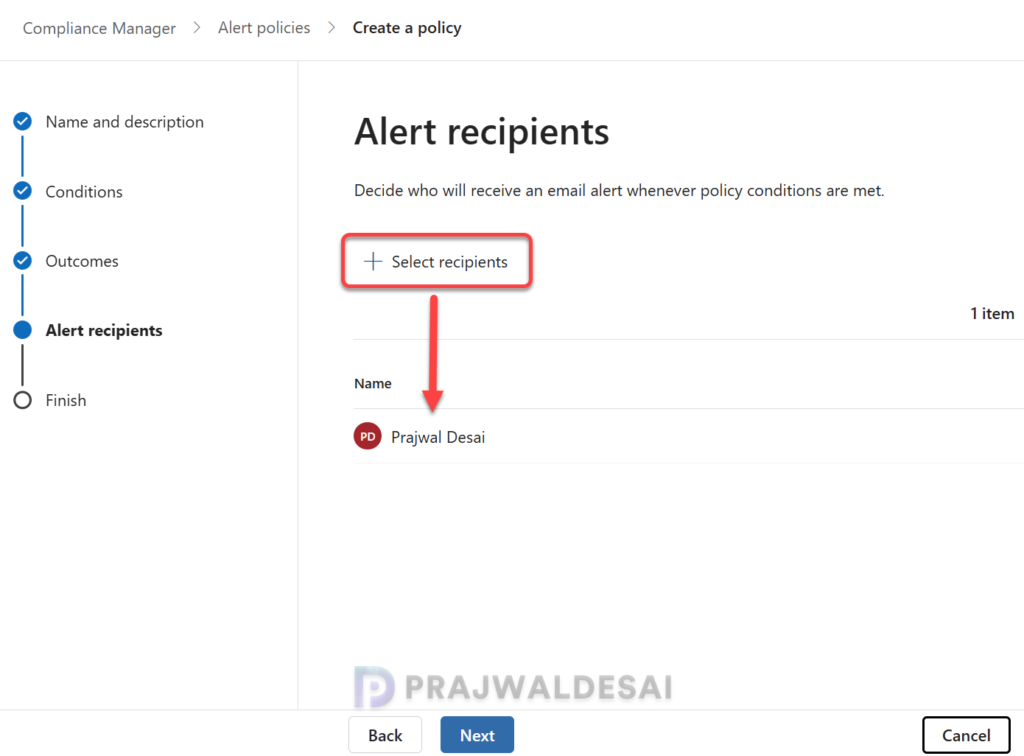
On the Alert recipient page, select users in your organization to receive an email when the policy conditions are met. The user who creates the policy is the default recipient, which is a global admin in my case. Click Next.
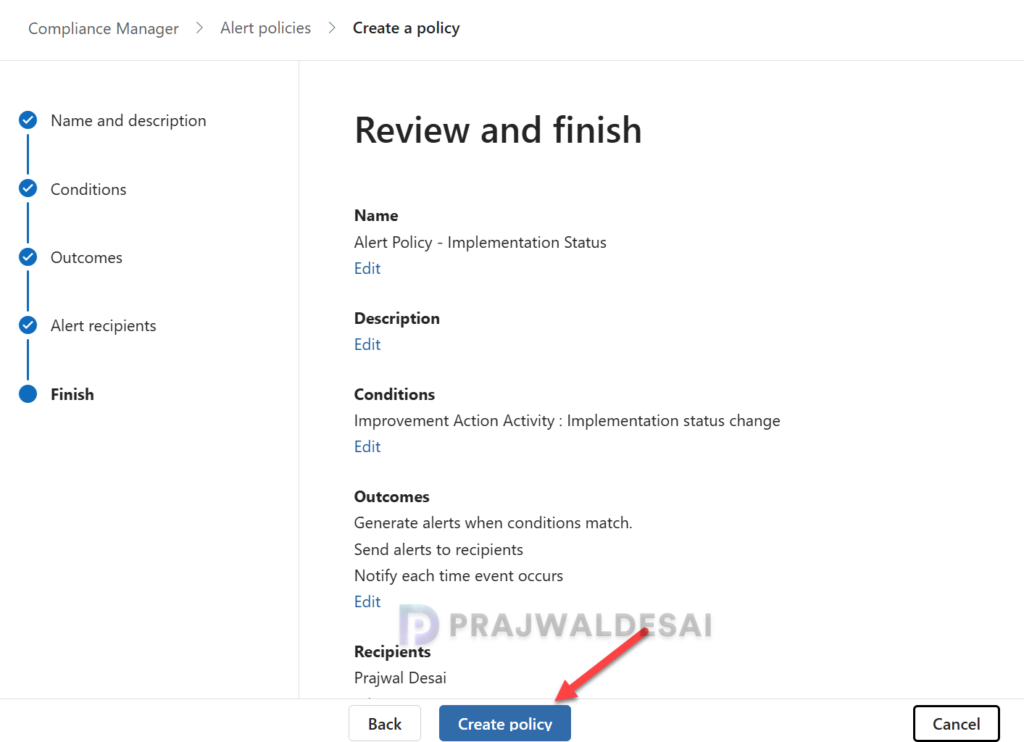
Review all selections and make any changes to each section by selecting Edit. When finished reviewing, select Create policy. When your policy is created, select Done. You should now see the Policies page listing all the policies created for your organization.
What’s Next
So, once you’ve created the Microsoft Purview alert policy, it is activated immediately and starts detecting matches and generating alerts based on the conditions you’ve specified. You’ll receive an email notification with details so you can determine whether to investigate or take further action. Microsoft says it can take up to 24 hours after creating or updating a policy before alerts are generated by that policy.
All alerts that you’ve created are listed on the Alerts page in Compliance Manager, and all alert policies are listed on the Policies page. That’s pretty neat and handy.
