

Microsoft has released the optional preview update KB5127936 for Windows 11 versions 26H2 and 25H2, updating the OS builds 26300.9818 and 26200.9818, respectively. This cumulative update focuses on usability, accessibility, recovery capabilities, and reliability improvements, giving users an early look at features that are expected to roll out more broadly in upcoming monthly updates.
Unlike Patch Tuesday security updates, preview updates like KB5127936 are typically intended to provide bug fixes, quality improvements, and early changes that Microsoft wants to validate before wider deployment. The new features and fixes introduced in this update will be carried over to the next one (November 2026 Patch Tuesday update).
The KB5127936 preview update arrived a little late on my Windows 11 PC, most likely because I had turned off the option to receive the latest updates. However, the update installation went smoothly, and I had no problems afterward.
Note: Microsoft also reminds customers that Windows 11 Home and Pro editions of version 24H2 reach the end of support in October 2026. Upgrade them to the next supported version to receive updates.
What’s New in Windows 11 KB5127936 Preview Update?
- Context Menu in File Explorer: The update introduces a faster, simpler, and customizable context menu. It now opens quickly, reduces clutter, and allows more control over commands and app extensions when right-clicking. You can also customize the menu through its Settings page by turning Windows commands on/off, adding commands like Print, managing app extensions, and displaying options like Cut, Copy, and Paste directly.
- New and Modernized AutoPlay Experience: The KB5127936 update modernizes the AutoPlay dialog for connected devices, adds dark mode support, improves text scaling and display setting reactions, and places AutoPlay notifications in the notification center for easier access.
- Cloud Rebuild: This update adds cloud rebuild, which re-installs Windows 11 with a Windows image and drivers from Windows Update without needing USB media. It offers drive sanitization, allowing file removal or secure data erasing before reinstalling Windows. IT administrators can manage and initiate cloud rebuild remotely via the Recovery CSP. To start the cloud rebuild in Windows, go to Settings > System > Recovery, and then select Rebuild PC. The device restarts in the Windows Recovery Environment and starts cloud rebuild.
- Windows settings backup and restore: The update adds a Restore Summary post-backup profile restoration on a new device, detailing restored Windows settings and Microsoft Store apps, enhancing transparency and confidence in setup.
- Apps Management: Policy-based app removal now supports managing in-box apps on Windows 11 Enterprise and Education devices in multi-session environments.
- Adaptive hibernate policy: The KB5127936 update improves the adaptive hibernate policy to provide more instant-on resumes from Modern Standby while helping preserve battery life when the charge is low. Noticeable changes include less hibernation while the battery is above 80% and hibernating sooner when the battery is below 10%.
- Windows IPv6 networking support: Windows now supports IPv6 CLAT for Wi-Fi and Ethernet, enabling 464XLAT translation for IPv4-only apps to access IPv4 services from IPv6-only networks, aiding IPv6-only deployments while ensuring IPv4 compatibility.
- Security: The update broadens memory integrity protection on supported PCs, enabling HVCI during updates to enhance security and support advanced Windows features, while respecting user or IT admin preferences.
- Improved File Explorer Search Experience: Microsoft has also refined File Explorer search results by presenting key information, including file names, locations, and dates, in a more consistent layout. Additional improvements include support for the ~ (tilde) shortcut in the address bar for quick navigation to profile folders and dark mode support for the Folder Options dialog.
- XBOX Mode: A refreshed Gaming Task View in XBOX mode features a new navigation bar for quick access to Exit to Desktop and Power Options, simplifying key system actions.
- Enhanced Settings: The update enhances the Windows Settings Privacy & Security page by consolidating Camera, Microphone, and Location controls and highlighting usage information directly on the main page.
- Phone Link: You can now hover over a recent message or notification in the Recent section to preview its content directly in Start without opening the item. This experience can be managed under Phone Link > Settings > Start menu personalization.
- Live Captions: The update enhances Live Captions by adding the Include screen reader audio setting, which is off by default. When off, it excludes audio from screen readers, focusing on microphone and system audio. To enable it, navigate to Settings > Accessibility > Captions.
- Windows Recovery: Windows recovery (WinRE) can now automatically use saved Wi-Fi profiles, including certificate-based networks, allowing devices to connect during recovery without preconfigured credentials. This feature is enabled by default, can be disabled by IT admins, and is starting to roll out.
Reliability Fixes and System Improvements
Alongside new features, the KB5127936 preview update also resolves several previously known problems, including:
- This update addresses an issue that prevents non-admin users from establishing Remote Desktop connections to remote devices with Administrator protection enabled. Affected connections might have failed with error 0xC000000D and displayed the message, “The token that was passed to the function is invalid.”
- KB5127936 resolves an issue preventing Smart App Control from being turned on in Windows Security after being turned off, with the option grayed out on affected devices.
- The update addresses an issue where Windows Sandbox might close unexpectedly and display error 0x80370106 while in use.
- This update resolves an issue with Always On VPN connections, where after the September security update, VPNs could get stuck in the Connecting state or fail to connect due to protocol selection issues, sometimes showing “The specified port is already in use.”
Install Windows 11 KB5127936 Preview Update
The KB5127936 preview update is offered through Windows Update for devices running Windows 11 26H2 and 25H2. If you don’t see the update listed, open the “Windows Update” settings, turn on the “Get the latest updates as soon as they’re available” option, and click the “Check for Updates” button.
The 2026-10 Preview Update (KB5127936) (26300.9818) update begins to download, and wait for it to complete the installation. The update requires a system reboot to complete the installation. Simply click the “Restart Now” button to restart your computer.
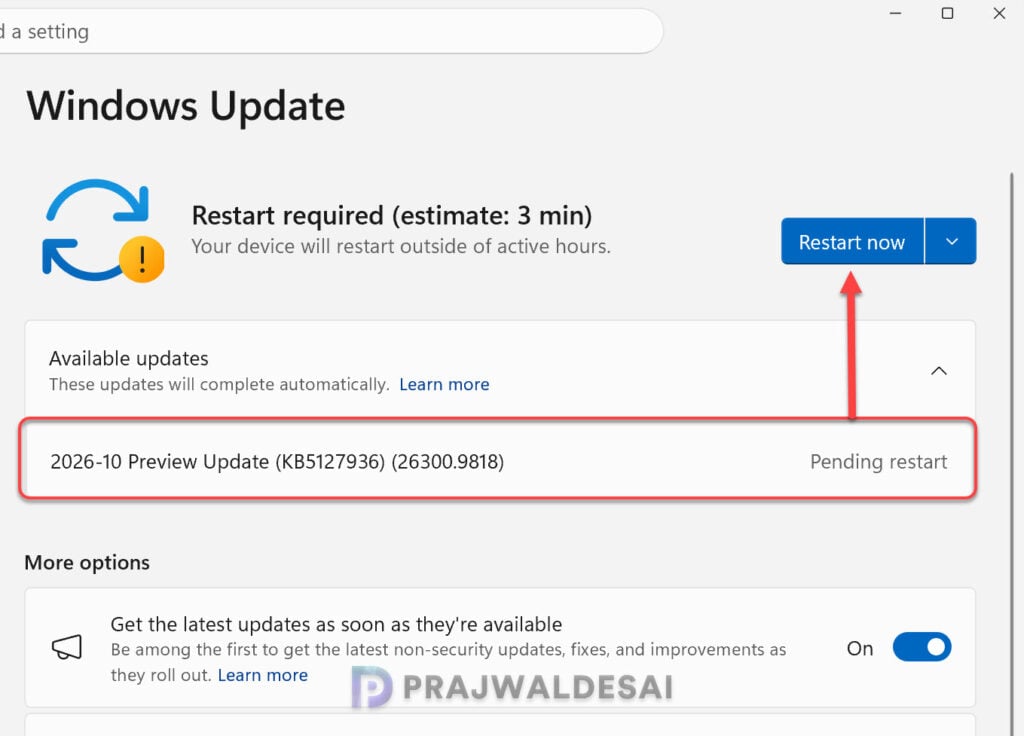
After installing the update, the devices are updated to the following build numbers:
- Windows 11 26H2: OS Build 26300.9818
- Windows 11 25H2: OS Build 26200.9818
Known Issues
After installing recent Windows updates, some USB Audio Class 1.0 devices might fail to start or produce sound. Microsoft continues to list this as a known issue for KB5127936. Apart from that, I haven’t come across any major issues with this update.
If you’re running stable production PCs, I would recommend waiting for the November 2026 cumulative release. If you’re testing new features such as the customizable File Explorer context menu or Cloud Rebuild, KB5127936 appears relatively low-risk unless you depend on older USB Audio Class 1.0 devices.
Lastly, here’s a comprehensive guide by me detailing the updates released for each version of Windows 11, including their respective KB numbers and build numbers.
