

In this guide, you’ll learn how to block Microsoft 365 apps using Conditional Access policy. This prevents unauthorized access from unmanaged or BYOD devices, requiring Intune-enrolled or compliant devices to access applications like Teams, OneDrive, SharePoint online, exchange online, and Outlook.
Conditional Access policies let admins assign controls to specific applications, services, actions, or authentication context. For instance, you can restrict access to the entire M365 apps suite or individual applications such as Office 365 Exchange online, SharePoint Online to a certain set of groups. Another example of policy usage is covered in the guide configure Conditional Access for Remote Help in Intune.
Organizations can leverage Conditional Access policies to enforce appropriate access controls, ensuring your organization remains secure without disrupting productivity. Before deployment, thoroughly assess the requirements and carefully design the policy to align with your organization’s needs. Now let’s get started.
Prerequisites
To effectively block users from accessing Microsoft 365 apps, the following requirements must be met. These prerequisites are also outlined in the Microsoft documentation.
- A working Microsoft Entra tenant with Microsoft Entra ID P1, P2, or a trial license enabled.
- Admins who interact with Conditional Access need one of the following role assignments:
- Security Reader: Read Conditional Access policies and configurations.
- Conditional Access Administrator: Create, modify, or restore soft-deleted Conditional Access policies.
- Windows devices must be registered in Microsoft Entra ID assigned with a valid license.
- Create a pilot group comprising test users or devices to evaluate the functionality of the conditional access policy. If the policy works successfully, you can expand it to other groups.
Best Practices
- While creating a conditional access policy, Microsoft recommends excluding Emergency access or break-glass accounts to prevent lockout due to policy misconfiguration. If all administrators are unexpectedly locked out, the emergency access administrative account allows you to sign in and restore access.
- After configuring your conditional access policy to block M365 apps, set the policy state to Report-only mode. This allows administrators to test most Conditional Access policies before fully enabling them. Once you confirm the policy is functioning as intended, switch the state from Report-only mode to On mode.
- Many Microsoft 365 apps are dependent on each other. For instance, blocking SharePoint can disrupt the functionality of the “Files” tab in Microsoft Teams. To avoid such issues, it is recommended to manage (block or allow) the entire Office 365 suite rather than focusing on individual apps.
- Be aware that blocking certain Microsoft Admin Portals can prevent users from accessing self-install pages, so test this policy carefully.
Block Microsoft 365 Apps using Conditional Access Policy
Conditional access is primarily configured in the Microsoft Entra admin center. There are multiple steps involved in creating a conditional access policy, and they are defined below.
Step 1: Create policy
Let’s create a new Conditional Access Policy in Microsoft Entra for blocking Microsoft 365 apps.
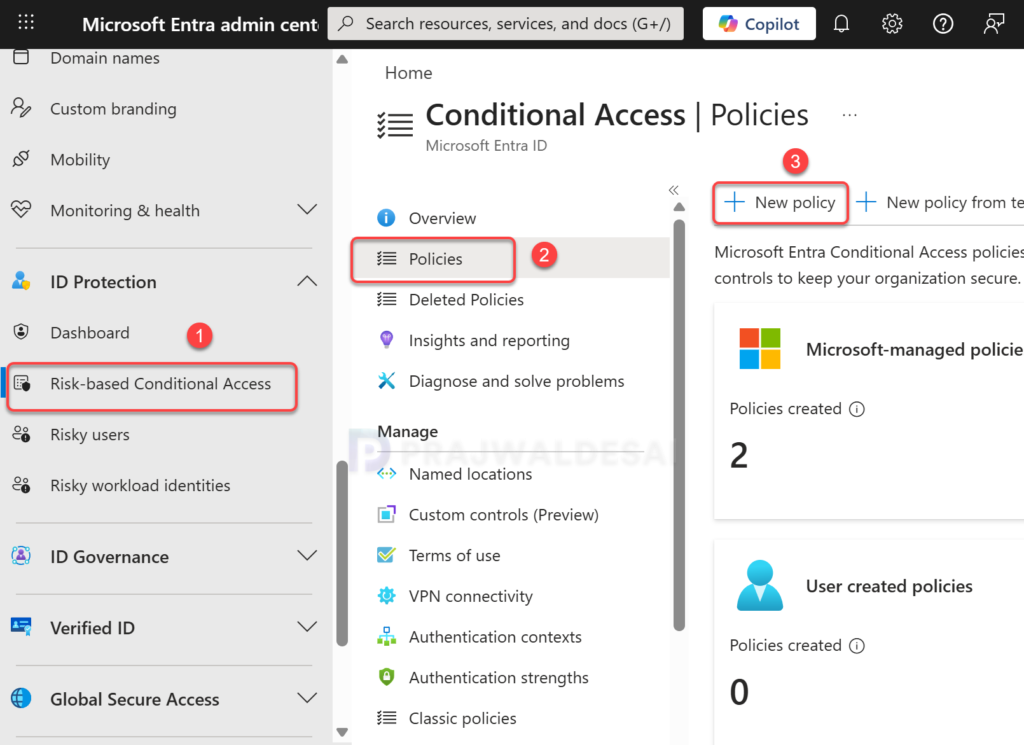
- Sign in to the Microsoft Entra admin center as a Conditional Access Administrator or Global Administrator.
- Browse to ID Protection > Risk-based Conditional Access > Policies.
- To create a new conditional access policy, select New policy.
Step 2: Define Policy Assignments
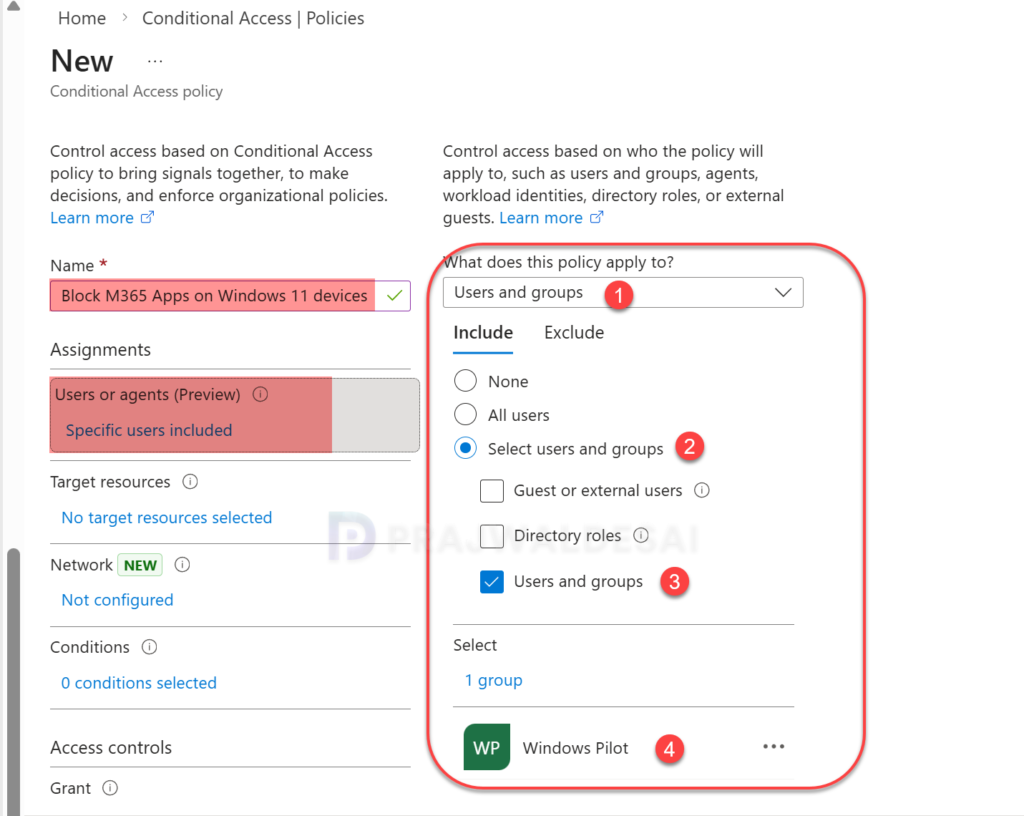
Specify a policy name, for example, block M365 apps for Windows users. Under Assignments, select Users or agents, switch to the Include tab. Here, add the Entra users/groups to target this policy. Switch to the Exclude tab and add your emergency access or break-glass accounts to prevent lockout due to policy misconfiguration.
In the below example, the policy is targeted to Windows Pilot group instead of All users.
Step 3: Specify Target Resources
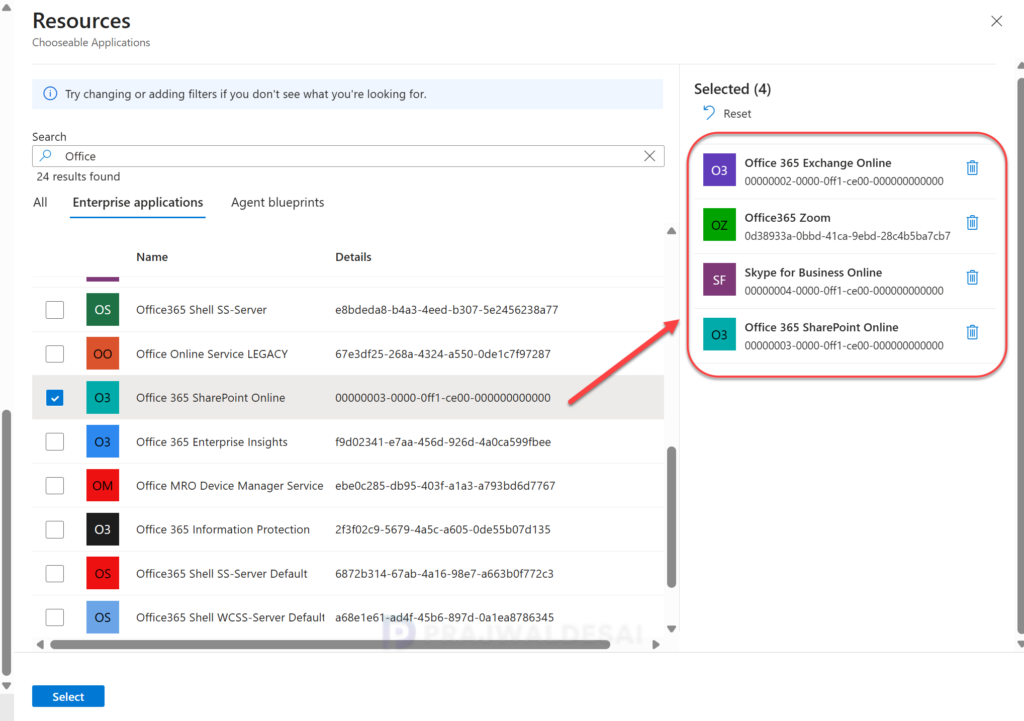
Under Target resources > Resources (formerly cloud apps), click on Select resources located in the Include tab. Now click on select specific resources. The Resources pane lists the Microsoft 365 applications that you can choose to allow or block.
Based on your organization requirements, you can either block all Office 365 apps or specific apps within the suite. Both the options are explained below.
Block all Microsoft 365 apps: If you want to block all the apps included in the Microsoft 365 suite, select Office 365 app. This is helpful if you wish to restrict your employees from accessing any Microsoft 365 applications.
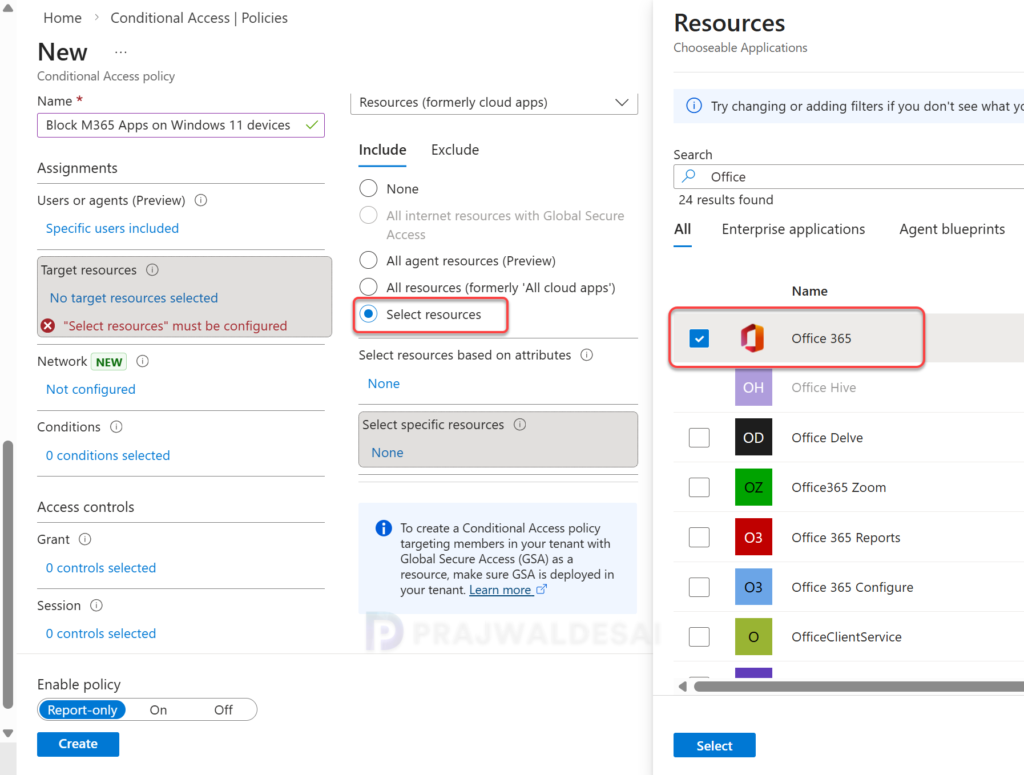
Block individual Microsoft 365 apps: Select this option to restrict specific apps within the M365 suite. For instance, you can block apps such as Office 365 Exchange Online, OneDrive, Outlook, Office 365 Zoom, Office 365 SharePoint Online, etc.
Note: When selecting some apps, you may see the message “Resource unsupported in Conditional Access.” It simply means they cannot be included in the conditional access policy.
Step 4: Define Device Platforms
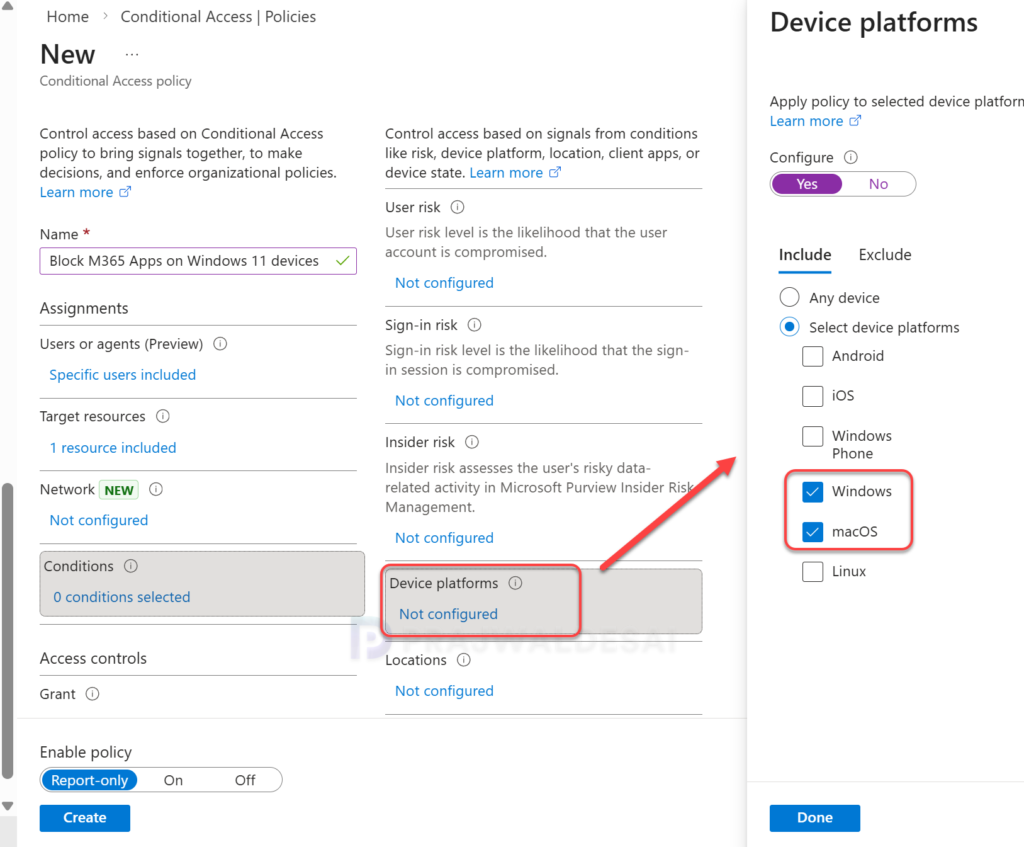
You can block the access to Microsoft 365 apps for specific device platforms. Conditional Access identifies the device platform using information provided by the device, such as user agent strings.
Under Conditions, select device platforms. To configure, select Yes and, under the Include tab, choose the device platforms to apply the policy. For example, I have selected Windows and macOS for applying this conditional access policy. Select Done and move to the next configuration.
Step 5: Choose Client Apps
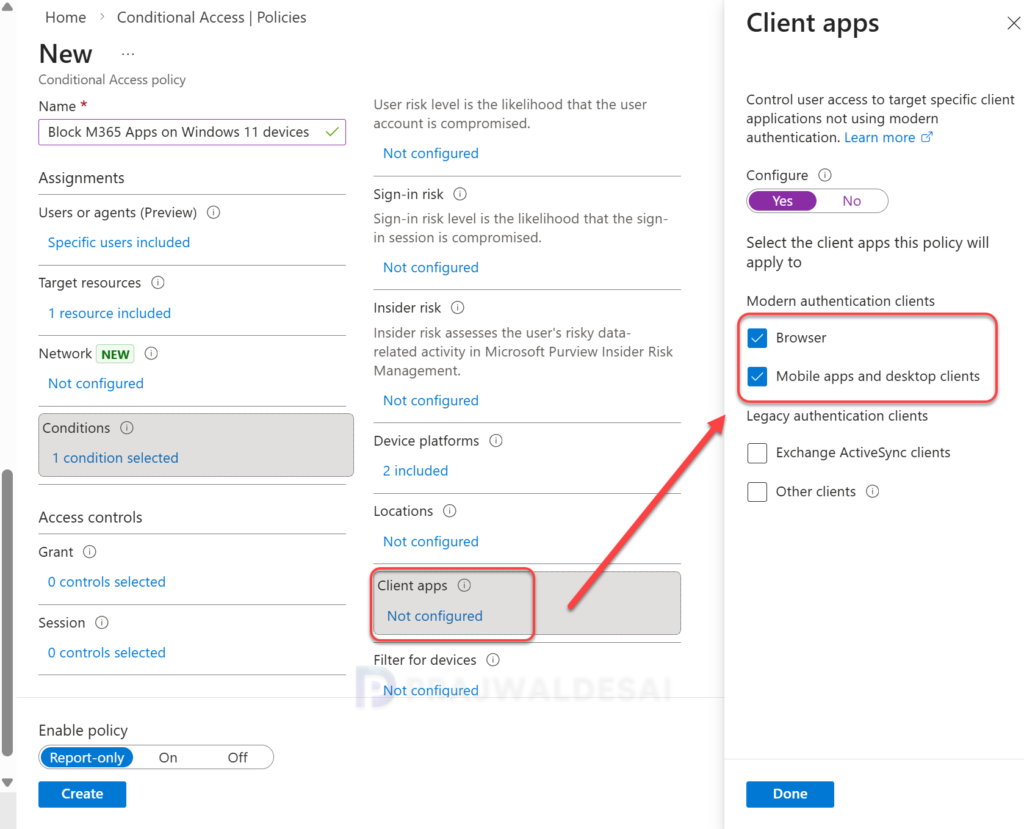
Once you’ve selected the device platforms, select client apps. Click Yes to configure this setting and select the client apps this policy will apply to. There are two options you see under Modern authentication clients.
- Browser: To block access to Microsoft 365 apps via browser, select this option.
- Mobile apps and desktop clients: To block access to Microsoft 365 apps on mobile apps and desktop clients, select this option.
Step 6: Block Access to M365 Apps
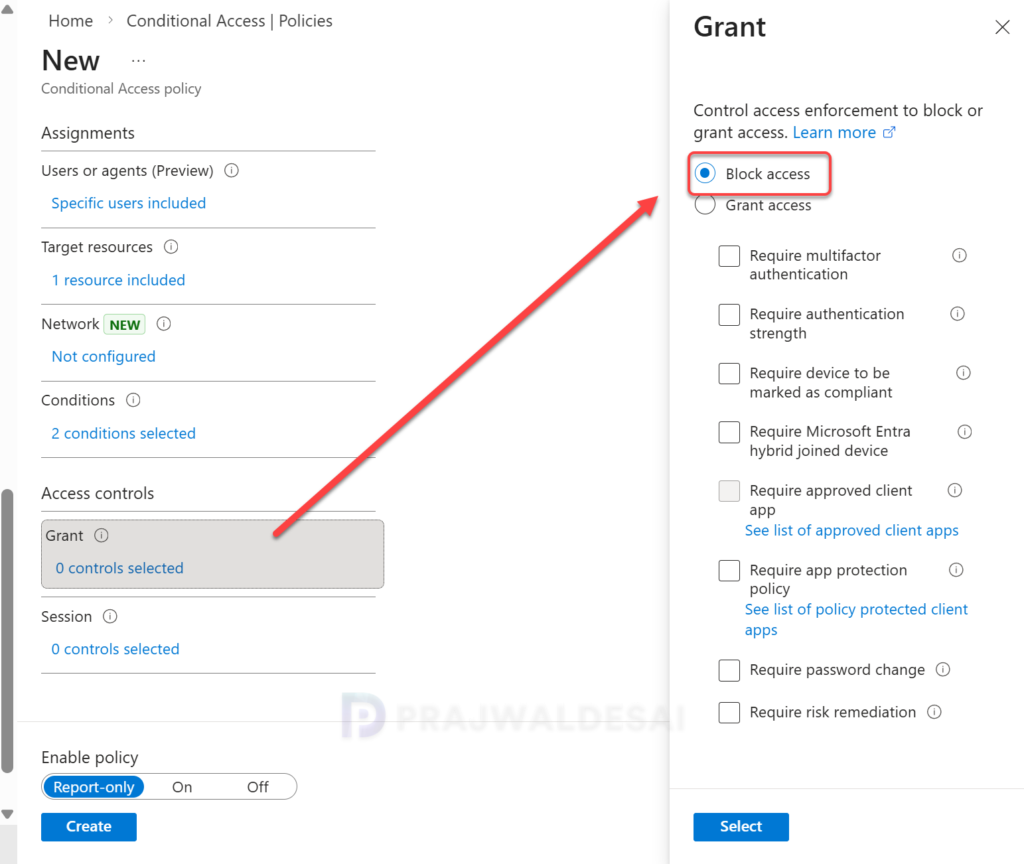
In a Conditional Access policy, an admin can use access controls to grant or block access to resources. Under Access controls, select Grant, and here you can control access enforcement to block or grant access to M365 apps. If you choose Block access, users will be restricted from accessing the Microsoft 365 apps that you selected in the above step.
Step 7: Enable Policy
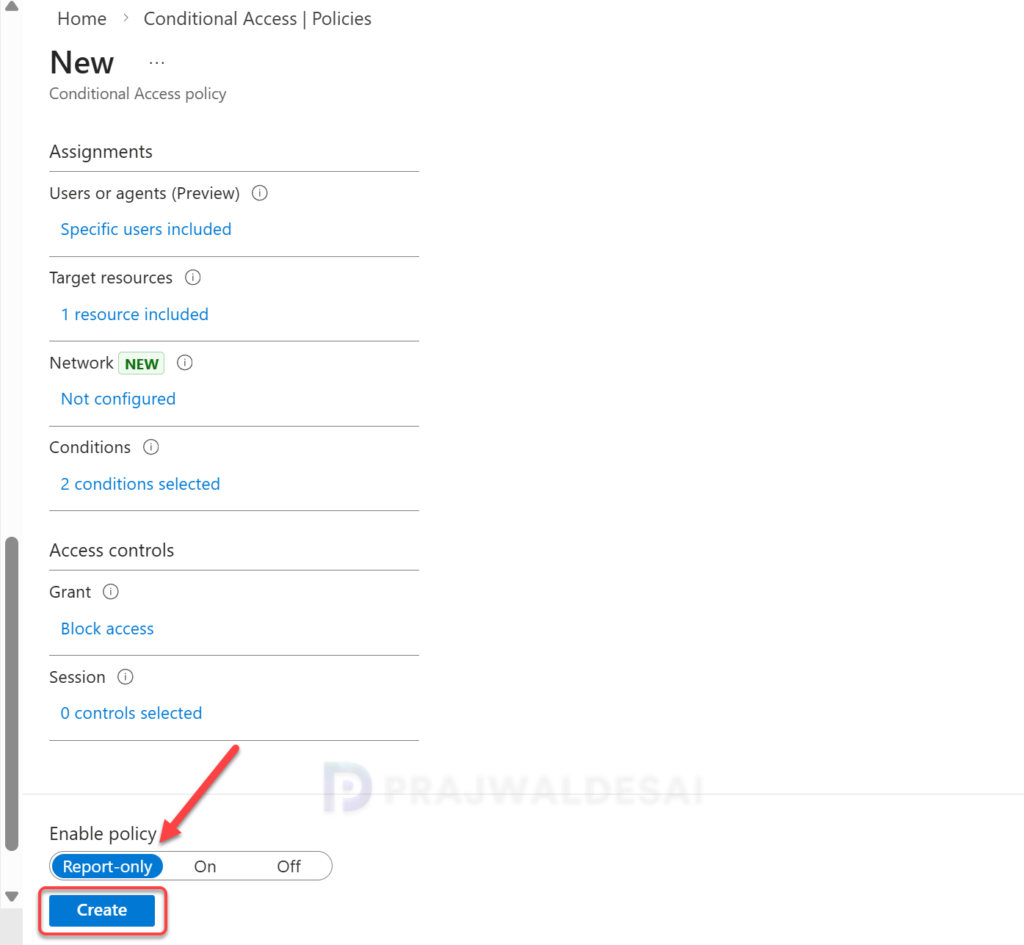
Once you have configured the policy settings, the final step is to enable the policy. Set the Enable policy toggle to Report-only first. This allows you to verify who would be impacted via the Microsoft Entra Sign-in logs without actually blocking them.
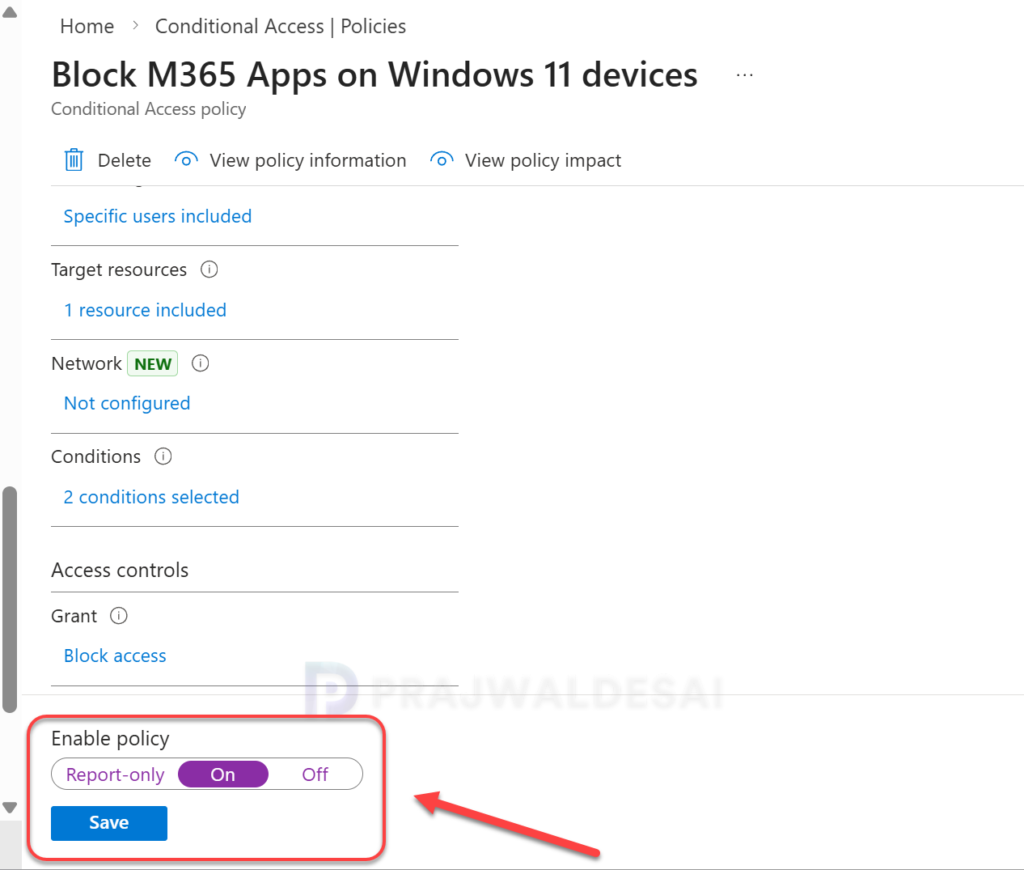
After confirming your settings using report-only mode, move the Enable policy toggle from Report-only to On.
End User Experience
In this final section, let’s go ahead and test if the above conditional access policy blocks the Microsoft 365 apps as defined in the policy. We will do this by accessing the Microsoft 365 apps via web browser and desktop clients.
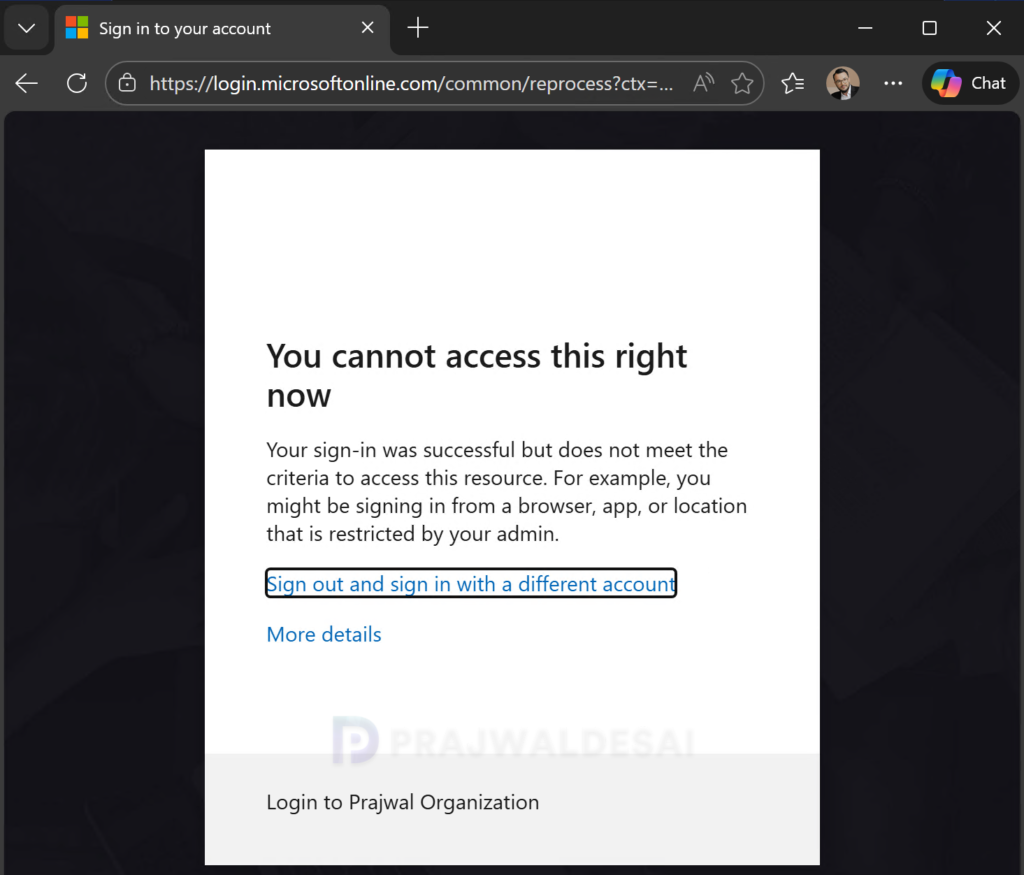
Sign in to a Windows 11 PC with a work account. Launch the web browser and access Microsoft Teams on the web or Outlook web. Within seconds, the conditional access policy prompts an error message to appear on the screen, displaying the following details.
You cannot access this right now. Your sign-in was successful but does not meet the criteria to access this resource. For example, you might be signing in from a browser, app, or location that is restricted by your admin.
To verify if the above conditional access policy is also applied to desktop clients, open the Teams desktop app, the following error is displayed.
We need you to sign in again. This could be a request from your IT department or Teams, or the result of a password update.
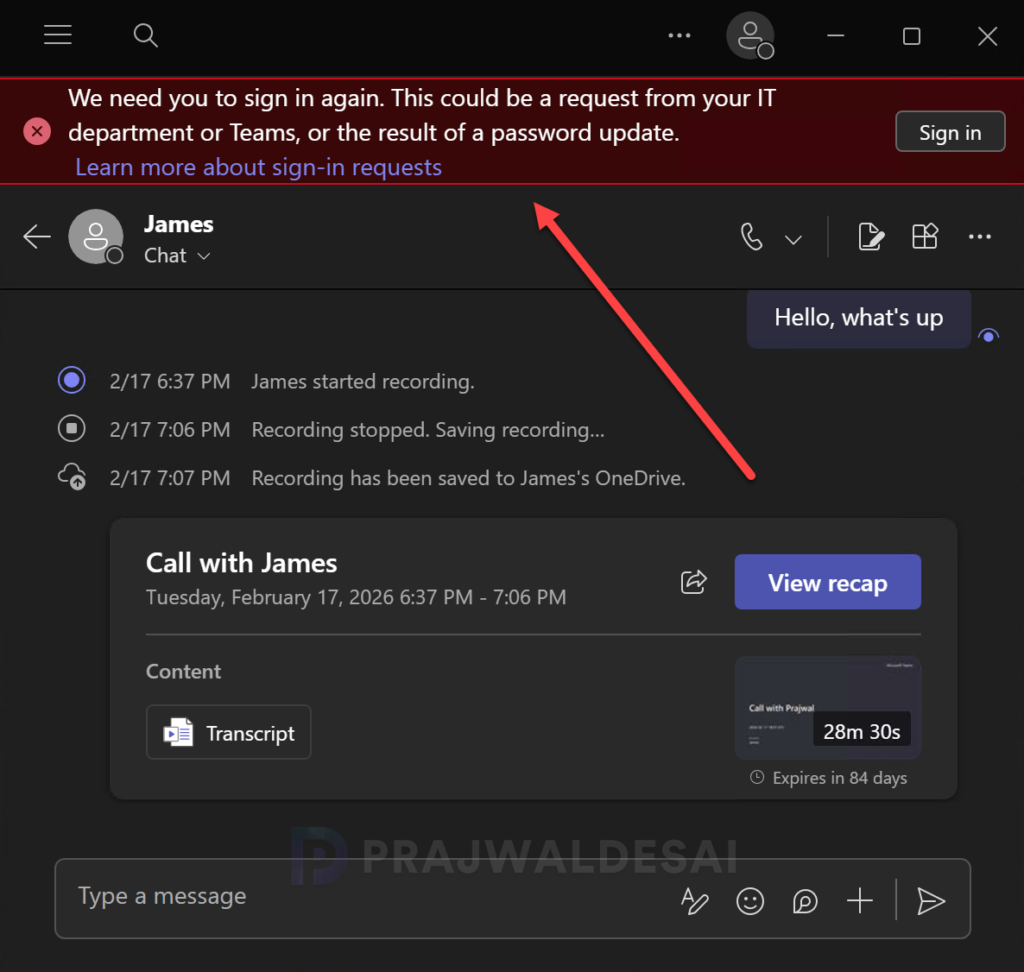
The above images and error details confirm that our conditional access policy successfully restricts access to Microsoft 365 apps across web browsers, mobile applications, and desktop clients.
Conclusion
In this guide, I’ve demonstrated how administrators can set up a conditional access policy in Microsoft Entra to restrict access to Microsoft 365 apps for users. Make sure the policy is configured according to your organization’s requirements. At any point of time, administrators can edit the policy and make required changes. Apply it initially to a pilot group of users, and once testing proves successful, gradually roll it out to a larger user base.
That’s all for this guide, if you have any questions, please let me know in the comments section.
