


This post will guide you on using CMPivot to check the disk size and available free space on the hard drives for Windows clients and servers managed by Configuration Manager. This valuable information enables administrators to quickly assess disk space and take proactive measures to prevent systems from running out of storage.
In large organizations, managing free disk space on critical Windows servers and clients is a significant responsibility. This involves two key aspects: monitoring the available disk space on the C: drive and identifying what is consuming the disk space. While the first can often be automated, the latter typically requires manual analysis.
When your C: drive is full, your computer’s performance can deteriorate significantly; applications may crash, updates might fail to install, and the system can become unstable, potentially freezing or crashing altogether. You must always ensure your root drive has enough space left.
Many third-party solutions on the market provide insights into devices with low disk space, enabling system administrators to take appropriate actions. However, these solutions are typically paid and come bundled with additional features. Fortunately, CMPivot offers this functionality for free.
Use CMPivot to Find Disk Size and Free Space
For Windows clients and servers managed via SCCM, you can leverage CMPivot to analyze the total size and available free space of the C: drive. First, launch the SCCM console and navigate to Assets and Compliance > Overview > Device Collections. Right-click a device collection and select Start CMPivot.
Switch to the Query tab of the CMPivot tool. Paste the below query and click Run. The following query retrieves information about the C: drive from devices and organizes the results in descending order, starting with computers that have the most free disk space.
Disk | where Description == ('Local Fixed Disk') | where Name == ('C:') | order by FreeSpace descThe image below shows the output displaying the Size, FreeSpace, and volume serial number of the C: drive for each device.

The below CMPivot query retrieves disk space information of the C: drive from devices, filters the results with device name, drive letter, total size, and free space and organizes the results in descending order, starting with computers that have the most free disk space.
Disk | where Description == ('Local Fixed Disk') | where Name == ('C:') | order by FreeSpace desc | project Device, Name, Size, FreeSpace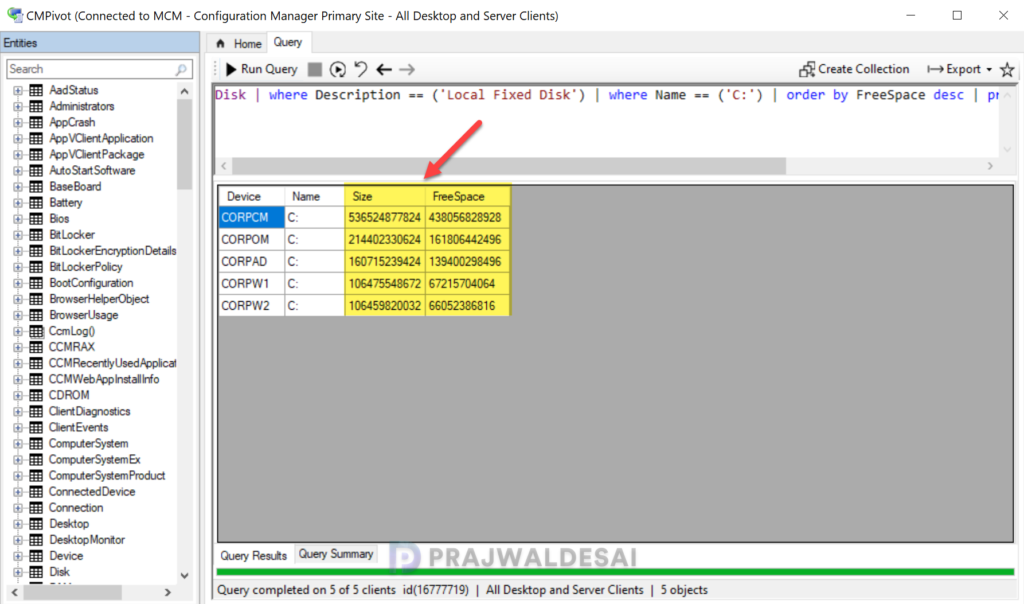
Next Steps
So once you’ve determined the devices whose C:\ drive is full, find what’s taking up space on the drive. In general, you can use some commonly suggested solutions, such as uninstalling unused programs, emptying the Recycle Bin, and moving large files (Downloads, Videos) to another drive or external storage. Furthermore, consider enabling the Storage Sense or extending the C drive if you have unallocated space.
