


In this post, I will show you how to resolve the Trusted Platform Module error code 80090016. You may encounter this error with applications like Teams, Outlook, or Microsoft 365 apps for enterprise when the TPM fails to authenticate securely. The TPM error 80090016 can be caused by corrupted TPM data, misconfigured system settings, hardware component replacement, or outdated firmware.
An administrator recently informed me about an issue where a few users within the organization were unable to sign in to Microsoft 365 desktop applications and encountered error 80090016. The affected apps included Teams, Outlook, OneDrive for Business, Excel, PowerPoint, and Word.
The following error message was seen when launching the Microsoft 365 enterprise apps:
Something went wrong. Your computer’s Trusted Platform Module has malfunctioned. If this error persists, contact your system administrator with the error code 80090016. More information: https://www.microsoft.com/wamerrors.

TPM is a hardware-based security feature used to store cryptographic keys securely. When the TPM malfunctions, it affects the applications like Microsoft Office, Teams, or Outlook due to which they fail to authenticate properly and report errors.
Fix Trusted Platform Module Error Code 80090016
Now let’s go through some solutions that can help you resolve the Trusted Platform Module malfunction error 80090016.
Solution 1: Rename Microsoft.AAD.BrokerPlugin_cw5n1h2txyewy
If your organization users are getting periodic Microsoft 365 login prompts or TPM malfunction error 80090016, you can resolve it by renaming the Microsoft.AAD.BrokerPlugin_cw5n1h2txyewy folder. The folder is located in C:\Users\%username%\AppData\Local\Packages directory. This solution has been highly effective for numerous users, as reported on Reddit, Microsoft forums, which is why I’ve prioritized it first.
The MS AAD broker plugin is responsible for enabling secure authentication and single sign-on (SSO) for applications that use Microsoft Account or Azure AD credentials. When a user attempts to rename or delete the Microsoft.AAD.BrokerPlugin folder, it says the action can’t be completed because the folder or a file in it is open in another program.

To resolve this, sign-in to the computer with an administrator account. Browse to the C:\Users\%username%\AppData\Local\Packages and rename the Microsoft.AAD.BrokerPlugin_cw5n1h2txyewy folder. Once that is done, restart the computer. Now you will find the newly created Microsoft.AAD.BrokerPlugin_cw5n1h2txyewy folder. The outdated folder can be safely deleted.
Launch Outlook, Teams or any M365 apps and you shouldn’t see the error code 80090016 anymore. Users may have to sign in to the Microsoft 365 apps to get the access to files and data.

Solution 2: Reinstall Microsoft Entra WAM Plugin Package
The Microsoft Entra WAM Plugin is part of Windows, and if you’re encountering error 80090016 or M365 apps authentication issues during sign-in, you can repair or reinstall the WAM plugin.
Sign in to the computer on which you’re encountering the TPM error 80090016 and open PowerShell as Administrator. If your issue is about a work account, you have to fix the Microsoft Entra WAM plugin package by running the following PowerShell command.
if (-not (Get-AppxPackage Microsoft.AAD.BrokerPlugin)) { Add-AppxPackage -Register "$env:windir\SystemApps\Microsoft.AAD.BrokerPlugin_cw5n1h2txyewy\Appxmanifest.xml" -DisableDevelopmentMode -ForceApplicationShutdown } Get-AppxPackage Microsoft.AAD.BrokerPlugin
If you are facing the error 80090016 for your personal accounts such as @outlook.com, @hotmail.com, you have to fix the Live ID package by running the following PowerShell command.
if (-not (Get-AppxPackage Microsoft.Windows.CloudExperienceHost)) { Add-AppxPackage -Register "$env:windir\SystemApps\Microsoft.Windows.CloudExperienceHost_cw5n1h2txyewy\Appxmanifest.xml" -DisableDevelopmentMode -ForceApplicationShutdown } Get-AppxPackage Microsoft.Windows.CloudExperienceHost
Solution 3: Run the Microsoft 365 activation troubleshooter
The M365 activation troubleshooter effectively resolves authentication issues encountered during sign-in or activation. If you are seeing Trusted Platform Module has malfunctioned error 80090016 repeatedly for M365 apps, try running the Microsoft 365 sign-in troubleshooter.
To diagnose and automatically fix common sign-in and activation issues, you can run the Microsoft 365 Sign-in troubleshooter and Microsoft 365 activation troubleshooter.
Solution 4: Reinstall Microsoft Office
If the issue persists in Office apps (e.g., Teams, Outlook), reinstalling Office may help. To uninstall the Microsoft Office, open Settings > Apps > Installed Apps. Locate Microsoft Office and click Uninstall.
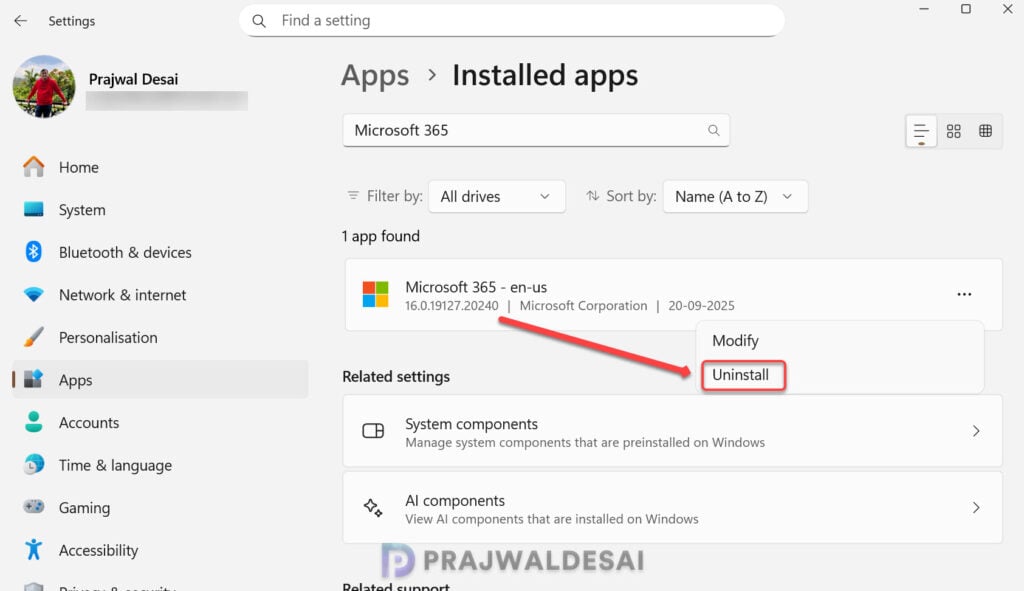
Restart your computer. Download and reinstall Office from the Microsoft website. If the Office or Microsoft 365 apps are deployed via SCCM or Intune, you can contact the administrator for re-installation.
Solution 5: Update Windows
Ensure your Windows installation is up to date, as updates often include fixes for authentication-related components.
- Open Settings > Update & Security > Windows Update.
- Click Check for Updates and install any pending updates.
Important Considerations
- Microsoft doesn’t support disabling Azure Active Directory Authentication Library (ADAL) or Web Account Manager (WAM) authentication as a solution to sign-in or activation issues. This method can adversely affect your environment.
- For TPM error 80090016, avoid manually clearing the TPM in BIOS or Windows settings. Clearing the TPM may require users to resolve issues by removing and re-adding accounts, particularly when managing multiple WAM accounts.
- If the issue persists after following the above discussed solutions, I recommend contacting Microsoft Support for further assistance. They may provide specific tools or guidance for resolving WAM Plugin-related issues.

Hi Prajwal, thanks for this post. I want to confirm that renaming hte Microsoft.AAD.BrokerPlugin_cw5n1h2txyewy resolved the error 80090016.