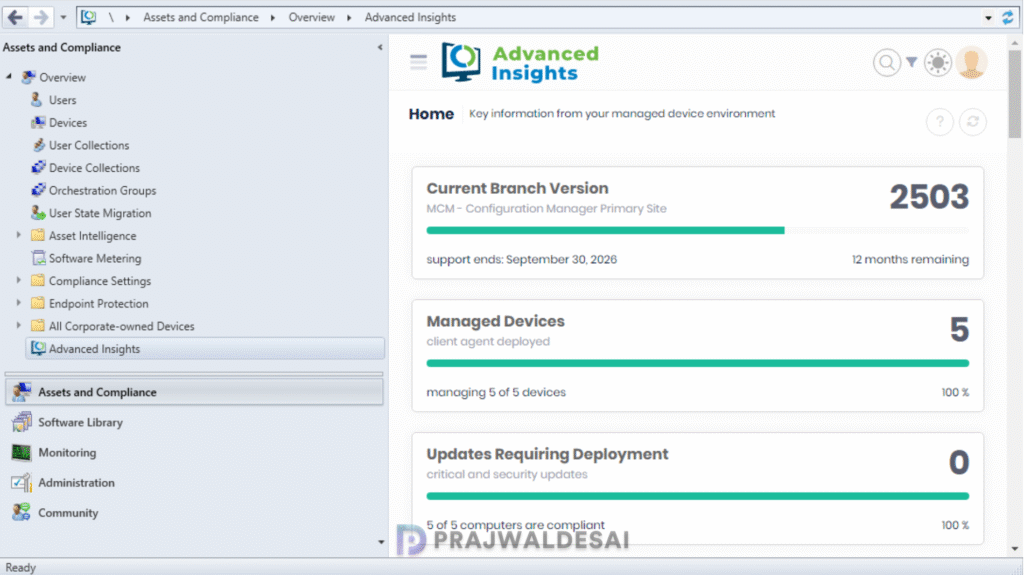
In this post, I will share how to download and install Patch My PC advanced insights SCCM console extension. By installing this console extension, you get easy access to all Advanced Insights dashboards and individual devices, collections, updates, etc.
Advanced Insights by Patch My PC is a dashboard portal for reporting on a Configuration Manager data set. It retrieves the data from the entire SCCM environment and displays critical data quickly for administrators.
When you install Advanced Insights for SCCM for the first time, you may observe that the console extension is not included in the installation package. That’s because Patch My PC considers it an optional feature that administrators can import if needed.
Importing the Advanced Insights console extension into SCCM adds a node to the Assets and Compliance view of the console as well as provides an additional option in the context menu when right-clicking certain object types in the console. If you are new to importing the console extensions, I recommend reading my detailed guide on managing SCCM console extensions.
Step 1: Download Advanced Insights Console Extension
Open your favorite browser and navigate to the Advanced Insights Console Extension download page. Click on the download link and the browser downloads AdvancedInsightsConsoleExtension.zip file weighing roughly 446 KB.

Extract this AdvancedInsightsConsoleExtension.zip file to a folder and we see it contains AdvancedInsightsConsoleExtension.cab file. This is the extension file, and I will import the same into the Configuration Manager console.

Step 2: Import the Console Extension
Open the Configuration Manager console and navigate to Administration\Updates and Servicing\Console Extensions. In the top-ribbon, select “Import Console Extension“.

On the Select a custom console extension window, click Browse and select the AdvancedInsightsConsoleExtension.cab. Click Next.

Click Next on the Summary page.

On the Completion page, click Close. This completes the procedure for importing Patch My PC Advanced Insights console extension for SCCM.

Step 3: Approve the Extension
Once you’ve imported the Patch My PC console extension, it must be approved by an administrator for the site. Only after approval the console users install the extension on their local consoles.
To approve the extension, go to Administration > Updates and Servicing > Console Extensions. Right-click Advanced Insights Console Extension and select Approve Installation.

Step 4: Install Advanced Insights Console Extension
Once you have approved the console extension for Advanced Insights, right-click on the extension and select Install.

The console extension will be installed for the current console. If you wish to make this extension available for other IT users, ensure you enable notifications for this extension. Click OK to continue.

The Configuration Manager console will restart to install the console extension. If promoted to install or update the extension, click OK.
Step 5: Access Advanced Insights from ConfigMgr Console
The SCCM console reloads, revealing a new “Advanced Insights” node under the Assets and Compliance workspace. Upon selecting the Advanced Insights, you’ll be prompted to log in with your credentials to access the Advanced Insights portal. Simply enter your username and password, then click “Log in” to proceed.

The Advanced Insights portal is conveniently accessible directly within the Configuration Manager Console, offering a similar experience to accessing it through a web browser. You can pretty much access the dashboard and the data within the console.