

If you have just bought a new Windows 11 laptop with a dedicated Copilot key on the keyboard, it can be customized to launch your favorite app that is MSIX-packaged and signed or remap it to a custom function. Let’s explore this interesting new feature.
Windows 11 Insider Preview Build 27729 introduces a new feature where Windows 11 users can remap the Copilot key. Microsoft is testing this new Copilot key customization feature for Windows 11 and assures additional refinements will be added in the upcoming builds.
If the keyboard connected to your Windows 11 PC does not have a Copilot key, adjusting this setting will not do anything. By default, the key will continue to launch Copilot on devices that have the Copilot app installed until a customer chooses a different experience.
Note: Once the Copilot reprogram feature is developed and Microsoft deems it ready for use, it will be made available for Windows 11 stable versions (non-insider versions). Until then, you can take advantage of this feature by joining the insider program or keeping an eye out for updates.
Customize Copilot Key on Keyboard
Sign in to your Windows 11 PC and go to Settings > Bluetooth & devices > Keyboard. Under Shortcuts and hotkeys, click the drop-down next to the setting “Customize Copilot on keyboard“. There are two options you see here: Search and Custom. Let’s explore each of these options.
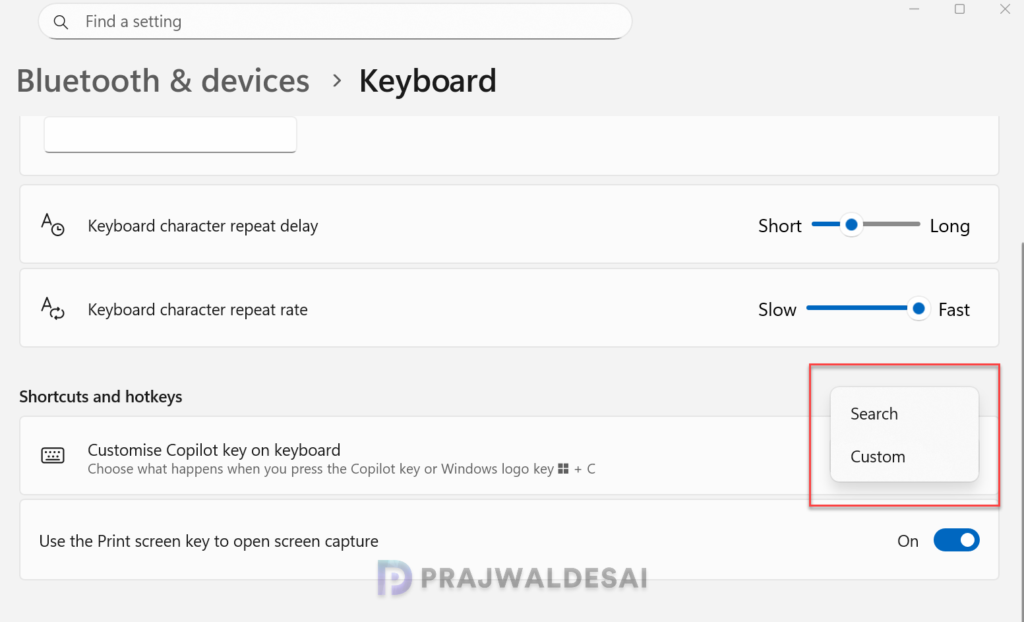
If you want to launch an app when you hit the Copilot key, select the option Custom. This brings up an app selection pane. Here, you can select your preferred MSIX app that you would like to launch when you press the Copilot key on your keyboard.
In the below example, I have remapped the Copilot key to launch the Notepad app. If you don’t find your app in the list, make sure the MSIX app is signed and updated to the latest version.

The below screenshot shows the Notepad app is successfully mapped to the Copilot key on the keyboard. When you press the Copilot key, the Notepad app is launched.

Remap Copilot Key to launch Search
If you want to launch the search every time you press the Copilot key, configure the Copilot key on the keyboard to launch the search. Whenever a user presses the Copilot key, Windows 11 search launches, making it easy to locate your files and search the web.

