


In this post, I’ll guide you on how to import updates into WSUS using PowerShell. If a critical update, Out of Band (OOB) update, or security update is unavailable in WSUS, you can manually import it and deploy it across your network.
Previously, Windows updates could be imported directly through the WSUS console. However, this functionality has now been replaced with a PowerShell script. This change occurred because the import updates feature in WSUS relied on ActiveX, which is now deprecated.
If you are deploying windows updates using SCCM, you cannot import the updates into SCCM directly. You’ll have to first import the updates into WSUS and then sync that update from WSUS to SCCM. Take a look at the guide on how to import updates into Configuration Manager.
Introduction to WSUS Updates
Microsoft will always release the update with WSUS metadata catalog details. In rare cases, Microsoft will release individual updates that are not part of the WSUS catalog. That’s when you don’t see the individual patch in WSUS and the requirement for importing the update arises.
The below table lists the update release channel details and the action that you need to perform when the updates are missing in WSUS. This information is critical when you want to import updates into WSUS.
| Update Release Channel | Update Available | Next Step |
|---|---|---|
| Windows Update (Microsoft Update) | No | Take a look at the other options listed below. |
| Microsoft Update Catalog | Yes | Get the standalone package for the update from the Microsoft Update Catalog website. |
| Windows Server Update Services | No | Import the missing update into WSUS manually. |
| Configuration Manager Updates | No | Import the missing update into SCCM manually. |
Prerequisites for Importing Updates into WSUS
When you want to import updates into WSUS, you must make sure the following prerequisites are met.
- Any computer that has the WSUS administrative console installed, whether or not it’s a WSUS server, can be used to import updates.
- When importing from a WSUS server, use an account that’s a member of the WSUS Administrators group or the Local Administrators group.
- When importing from a remote computer, use an account that’s a member of the WSUS Administrators group and has administrative permissions on the local computer. Remote computers must be able to reach the WSUS server over the network.
Import Updates into WSUS Using PowerShell
Use the following steps to import updates into WSUS using PowerShell.
First, download the ImportUpdateToWSUS.ps1 and save this script on the WSUS server. Alternatively, if the download link doesn’t work, copy the below script and paste it to a text file and save it as ImportUpdateToWSUS.ps1 on your computer.
The script takes WSUS server Name/IP, WSUS server port, SSL configuration option, and UpdateID as inputs. The script can be used to import a single update or multiple updates.
<#
.SYNOPSIS
PowerShell script to import an update, or multiple updates, into WSUS based on the UpdateID from the catalog.

.DESCRIPTION
This script takes user input and attempts to connect to the WSUS server.
Then it tries to import the update by using the provided UpdateID from the catalog.

.INPUTS
The script takes WSUS server Name/IP, WSUS server port, SSL configuration option, and UpdateID as inputs. UpdateID can be viewed and copied from the update details page for any update in the catalog, https://catalog.update.microsoft.com.

.OUTPUTS
Writes logging information to standard output.

.EXAMPLE
# Use with remote server IP, port, and SSL.
.\ImportUpdateToWSUS.ps1 -WsusServer 127.0.0.1 -PortNumber 8531 -UseSsl -UpdateId 12345678-90ab-cdef-1234-567890abcdef

.EXAMPLE
# Use with remote server Name, port, and SSL.
.\ImportUpdateToWSUS.ps1 -WsusServer WSUSServer1.us.contoso.com -PortNumber 8531 -UseSsl -UpdateId 12345678-90ab-cdef-1234-567890abcdef

.EXAMPLE
# Use with remote server IP, defaultport, and no SSL.
.\ImportUpdateToWSUS.ps1 -WsusServer 127.0.0.1  -UpdateId 12345678-90ab-cdef-1234-567890abcdef

.EXAMPLE
# Use with localhost default port.
.\ImportUpdateToWSUS.ps1 -UpdateId 12345678-90ab-cdef-1234-567890abcdef

.EXAMPLE
# Use with localhost default port, file with updateIDs.
.\ImportUpdateToWSUS.ps1 -UpdateIdFilePath .\file.txt


.NOTES
# On error, try enabling TLS: https://learn.microsoft.com/mem/configmgr/core/plan-design/security/enable-tls-1-2-client.

# Sample registry add for the WSUS server from command line. Restarts the WSUSService and IIS after adding:
reg add HKEY_LOCAL_MACHINE\SOFTWARE\Microsoft\.NETFramework\v4.0.30319 /V SchUseStrongCrypto /T REG_DWORD /D 1

## Sample registry add for the WSUS server from PowerShell. Restarts WSUSService and IIS after adding:
$registryPath = "HKLM:\Software\Microsoft\.NETFramework\v4.0.30319"
$Name = "SchUseStrongCrypto"
$value = "1"
if (!(Test-Path $registryPath)) {
    New-Item -Path $registryPath -Force | Out-Null
}
New-ItemProperty -Path $registryPath -Name $name -Value $value -PropertyType DWORD -Force | Out-Null
Restart-Service WsusService, w3svc

# Update import logs/errors are under %ProgramFiles%\Update Services\LogFiles\SoftwareDistribution.log.

#>

param(
    [Parameter(Mandatory = $false, HelpMessage = "Specifies the name of a WSUS server, if not specified connects to localhost")]
    # Specifies the name of a WSUS server. If name isn't specified, connects to localhost.
    [string]$WsusServer,

    [Parameter(Mandatory = $false, HelpMessage = "Specifies the port number to use to communicate with the upstream WSUS server, default is 8530")]
    # Specifies the port number to use to communicate with the upstream WSUS server. Default is 8530.
    [ValidateSet("80", "443", "8530", "8531")]
    [int32]$PortNumber = 8530,

    [Parameter(Mandatory = $false, HelpMessage = "Specifies that the WSUS server should use Secure Sockets Layer (SSL) via HTTPS to communicate with an upstream server")]
    # Specifies that the WSUS server should use Secure Sockets Layer (SSL) via HTTPS to communicate with an upstream server.
    [Switch]$UseSsl,

    [Parameter(Mandatory = $true, HelpMessage = "Specifies the update Id we should import to WSUS", ParameterSetName = "Single")]
    # Specifies the update ID to import to WSUS.
    [ValidateNotNullOrEmpty()]
    [String]$UpdateId,

    [Parameter(Mandatory = $true, HelpMessage = "Specifies path to a text file containing a list of update ID's on each line", ParameterSetName = "Multiple")]
    # Specifies the path to a text file containing update IDs on each line.
    [ValidateNotNullOrEmpty()]
    [String]$UpdateIdFilePath
)

Set-StrictMode -Version Latest

# Set server options.
$serverOptions = "Get-WsusServer"
if ($psBoundParameters.containsKey('WsusServer')) { $serverOptions += " -Name $WsusServer -PortNumber $PortNumber" }
if ($UseSsl) { $serverOptions += " -UseSsl" }

# Empty updateID list.
$updateList = @()

# Get update IDs.
if ($UpdateIdFilePath) {
    if (Test-Path $UpdateIdFilePath) {
        foreach ($id in (Get-Content $UpdateIdFilePath)) {
            $updateList += $id.Trim()
        }
    }
    else {
        Write-Error "[$UpdateIdFilePath]: File not found"
		return
    }
}
else {
    $updateList = @($UpdateId)
}

# Get WSUS server.
Try {
    Write-Host "Attempting WSUS Connection using $serverOptions... " -NoNewline
    $server = invoke-expression $serverOptions
    Write-Host "Connection Successful"
}
Catch {
    Write-Error $_
    return
}

# Empty file list.
$FileList = @()

# Call ImportUpdateFromCatalogSite on WSUS.
foreach ($uid in $updateList) {
    Try {
        Write-Host "Attempting WSUS update import for Update ID: $uid... " -NoNewline
        $server.ImportUpdateFromCatalogSite($uid, $FileList)
        Write-Host "Import Successful"
    }
    Catch {
        Write-Error "Failed. $_"
    }
}
Open the browser and visit the Microsoft Update Catalog site. Search for an update you want to import into WSUS. Select the update and use the Copy button on the update details page to copy the UpdateID.
For example, in the below image, the KB5077744 OOB update that I want to deploy has update ID ‘1957d5d5-1222-4497-a863-ac84fa2bf57b‘.

To import updates, open a PowerShell console as an administrator and run the script with the following syntax.
.\ImportUpdateToWSUS.ps1 [-WsusServer] <String> [-PortNumber] <Int32> [-UseSsl] [-UpdateId] <String> [-UpdateIdFilePath] <string> [<CommonParameters>]Run the below command to import a single update into a WSUS server by specifying the server name and port number.
.\ImportUpdateToWSUS.ps1 -WsusServer WSUSServer.contoso.com -PortNumber 8530 -UpdateId 1957d5d5-1222-4497-a863-ac84fa2bf57bRun the below command to import multiple updates into a WSUS by using SSL with the following syntax.
.\ImportUpdateToWSUS.ps1 -WsusServer WSUSServer.contoso.com -PortNumber 8531 -UseSsl -UpdateIdFilePath C:\temp\UpdateIDs.txtOn WSUS server, use the below command to directly import the update using updateID.
.\ImportUpdateToWSUS.ps1 -UpdateId 12345678-90ab-cdef-1234-567890abcdefOn WSUS server, use the below command to import multiple updates using the update ID.
.\ImportUpdateToWSUS.ps1 -UpdateIdFilePath C:\temp\UpdateIDs.txt
Run the WSUS Synchronization
When any changes are made to WSUS, it’s important to update those changes by running synchronization. Open the WSUS console and expand your server. Right-click Synchronizations and select Synchronize Now.

Verify if the Update is imported into WSUS
Let’s check if the update has been successfully imported into WSUS:
- Launch the WSUS console and select Search.
- In the search box, type the update number and select Find Now.
- The update appears in the list of search results. This confirms that you have successfully imported the update(s) into WSUS.

Troubleshooting WSUS Import Updates Failed
Occasionally, when attempting to import an update into WSUS from the Microsoft Update Catalog, the download process may fail. While the update successfully moves to the basket, clicking the Import button results in the update entering a waiting state before ultimately showing as failed.
You might come across a standard canned message that says something like, Your WSUS server might not be configured correctly. This problem can be resolved with a straightforward registry change. Launch the cmd prompt as an administrator and run the below command.
reg add HKEY_LOCAL_MACHINE\SOFTWARE\Microsoft\.NETFramework\v4.0.30319 /V SchUseStrongCrypto /T REG_DWORD /D 1After you run the above command, try downloading the update again, and it should be successful. Take a look at this excellent article on how to troubleshoot WSUS connection issues with SCCM. This is especially useful when WSUS fails to connect to the SCCM server.
Manually Update Import from Microsoft Update Catalog (Deprecated)
Update: This method is deprecated. Please use PowerShell to import updates into WSUS.
We will now go through the steps to import updates into WSUS from the Microsoft Update Catalog. As an example, we will import the update KB4554364 into WSUS. This update is applicable for computers running Windows 10 1903 and Windows 10 1909 OS.
Launch the WSUS console, expand your server, and select Updates. In the right pane, under the Actions section, select Import Updates.
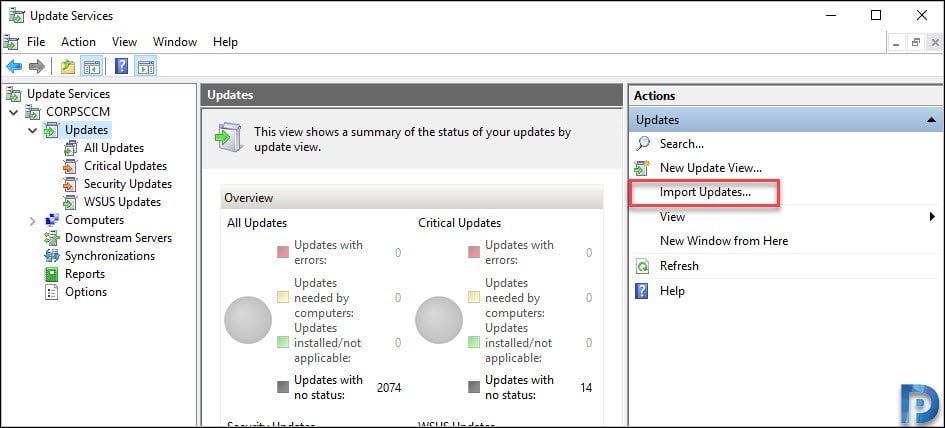
Clicking Import Updates opens the browser and takes you to the Microsoft Update Catalog site. If you can’t get to the Update Catalog site, check to see if it’s being blocked by a firewall. In the text box, type the update KB number, which is 4554364 in our case, and click Search.
You must pick the correct OS version because the 4554364 is applicable to Windows 10, Windows Server, etc. Most updates are applicable to more than one version of an operating system. Click the Add button next to the update that you wish to import.
Note: While manually importing updates into WSUS, you might find the “Add” button missing in the Microsoft Update Catalog. Here is a solution to fix WSUS Update Catalog Add Button Missing.
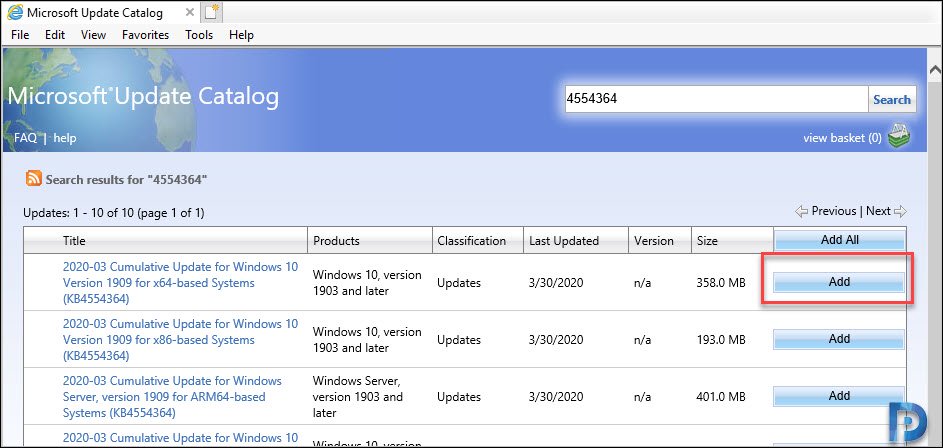
Clicking the Add button adds the update from the Microsoft Update Catalog to a basket. Select “View Basket.”

Now click on the Import button. Make sure the option “Import directly into Windows Server Update Services” is checked. This will import the selected update directly into Windows Server Update Services from the Microsoft Update Catalog.

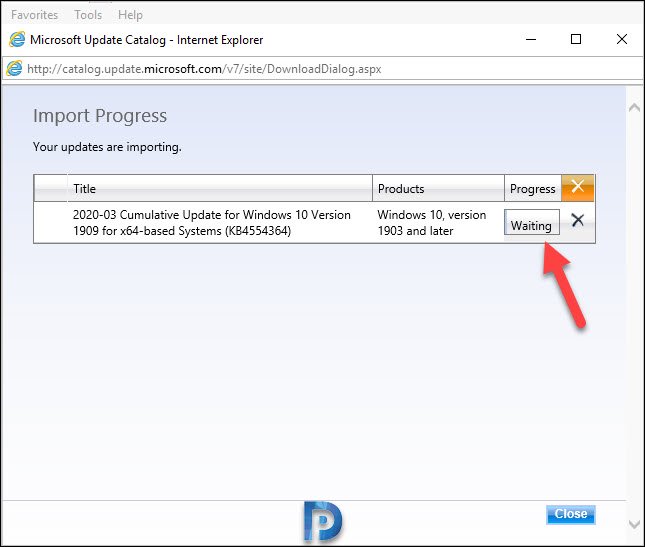
You can now monitor the import progress of the update. If the import status shows “Waiting,” it means the import operation has begun. The time taken to import the update will vary and mostly depends on the size of the update and your connection speed.
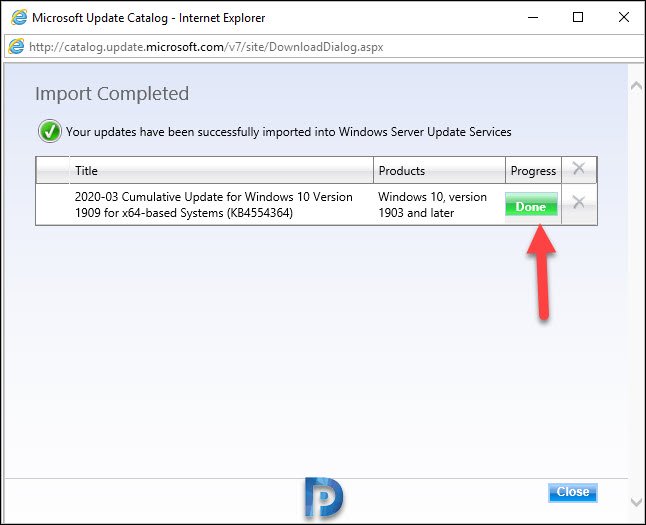
After a short while, we see the update is downloaded, and the status is finally changed to Done. This means the update has been imported into WSUS. Click Close.

Sir, would you happen to know how to provide updates to your offline environment that does not have the ability to connect to the internet at all?
Dear Prajwal,
I am trying to import updates directly to WSUS but i could not find option “Import directly into Windows Server Update”. I am using server 2016. I have checked in IE and also in edge but no luck.
Run as Administrator also same issue.
Please guide me how resolve this issue.
I see you have posted the question in the forums, I will respond over there.
I have manually imported the Microsoft KB’s but still not able to find in SCCM console. also tried lot of times to synchronize..
what will be root cause please ?
As Internet Explorer is out of Support, As it is not available in Current Server OS. How to import the patches with IE on the Server ?
To import updates from Edge you will need to enable IE Compatibility mode (Settings>Default Browser>Internet Explorer compatibility)and add the Windows Catalog page. Once you enabled the IE Compatibility mode you need to restart your Edge Browser, go to Windows Catalog page and the install prompt will show up so you can then follow this guide to add updates manually. Hope it helps!
Hi
i am unable to add a patch (KB5020436) from the update catalog, only Download is available.
Please advise how to add it because in our environment it is very important to be deployed asap
Hi Prajwal,
Is there any option to import KB in wsus if KB is not available in Microsoft catalog?
No, I don’t think so you can do that.
Thanks for you reply.
I have another Query. My client is saying that some KBs are missing in WSUS, and when I checked these KBs these are Delta updates and available in Microsoft Catalog and for the same KBs there is no any Cumulative updates. These KBs are KB4467696 , KB4467686 and KB4467702.
What should we enable in Product and classification so that these KBs can synchronize in WSUS as I can check in All updates there is no any delta updates available right now.
And when I am trying to import updates in WSUS Internet explorer throwing certificate error and unable to open Microsoft catalog website. We have 2012 R2 server.
So please guide me how these KBs can be available in WSUS.
Thanks
Do you know if any way to import from a different repository, such as a local file or the DoD repository at DISA?
Nope, you must import the updates from Microsoft update catalog.
So I imported the updated January 2022 updates into WSUS [Server 2012 R2] – I got the message that they were successfully uploaded and I see them in WSUS, but when I scan for updates on a client server, they are not appearing. Why?
That should take some time. Have you examined the log files?
while importing using IE, I am getting below error:-
“This update cannot be imported into Windows Server Update Services, because it is not compatible with your version of WSUS.”
That issue should be resolved now.
Hi,
When i go to import an update from WSUS, go to basket,import into wsus, it downloads and gives me the green dialog confirming this. but does not show up in WSUS.
I have synced many times.
Do you see any errors during synchronization?
On server 2016
1) ensure IE is your default browser (at least temporarily so WSUS will open IE)
2) when WSUS opens the page in IE if you get an error, change the 1.20 to 1.80 in the URL
3) add to basket and import directly as per directions above
Hi,
I had to access the site manually (www.catalog.update.microsoft.com) on the wsus server cause the “Import Updates” button failed to load anything on IE.
I chose the updates I wanted, but it isn’t giving me the option to import it to wsus directly from the site, just download the updates. Is there a specific directory I need to save it in for my wsus to access the updates?
Thanks,
Hi.
I have WSUS Server on Field Side with no internet where i have to import windows update manually . I have download the Updates from Microsoft Catalog site. Now i need to import these CAB files in WSUS server. kindly advise me to rectify this problem.
Do the updates have to be approved in WSUS before they appear in SCCM? when I run the sync in SCCM after importing a particular update, i cannot see it in sccm. I have also created an ADR for this update which falls into the classification of Feature packs. The update is .NET Framework 4.8 for Windows 10 1809 as all of our 1809 machines are missing the update. Please can someone advise? Thanks
If the import fails, where can we check logs.
The this command on the Administrator elevated CMD then restart the server try again it should work.
reg add HKEY_LOCAL_MACHINE\SOFTWARE\Microsoft\.NETFramework\v4.0.30319 /V SchUseStrongCrypto /T REG_DWORD /D 1
Thank you! That fixed me!
Another thanks here – this fixed me up so that manual updates would download and import properly.
Ditto – first time I’ve had to do this but working fine now.
Hi Prajwal,
when i try to import KB to wsus – i get an error, which says that there’s a problem with proxy or WSUS – but automatic updates work. IE 11, *.microsoft.com added to trusted sites – what can be wrong?
Hi Prajwal,
When i click on import in WSUS the IE opens a blank white page and nothing happens
but if i try to open catalog.update.microsoft.com then it opens but i do not have import option to import wsus..
Thanks in advance
Hello,
I have followed the exact same steps for KB4551762.
There is I still cannot see the KB on the SCCM Console
Please see attached pictures as well.
How can I get to see the KB on the SCCM Console?
I have the same issue, I’ve imported KB4551762, KB4506991, KB4512508, KB4515384 and KB4489639. But, items are not showing up in SCCM. Can you please advise?
Even I am getting the same error now ,could please let me know what the procedure you followed to get this fixed(if this was resolved)
Hi Gokul & Prajwal, I don’t see the option for “View Basket” & “Add” in my WSUS console.
I am running SCCM 1902 in my production environment.
Please help me , how to get those options visible in browser.
I have tried accessing Microsoft Update Catalog site on IE,Chrome & Firefox, but still not getting those options available.
Waiting for your reply & solutions.
Thanks 🙂
Hi, Hope you have gone through the above Steps. Search with partucular KB and you will have an option ADD, Once added it will visible under VIEW BASKET
Hi Gokul
When a click on view basket I obtain a window that shows me only download button but not Import button. Is there something that I missed?
Thanks and regards.
Use internet explorer to access update catalog site.
Hi , Please use IE browser as default
Thanks Its working..