

In this post, I will show you how to disable SCCM application deployment using console and PowerShell. If you find yourself in a critical situation where you need to stop an ongoing deployment targeted at a large number of users or devices, these approaches will assist you effectively.
When you create an application in SCCM and deploy it to a device or user collection, a corresponding deployment is automatically generated. This deployment is then displayed under the Deployments tab when the respective collection is selected.
Beginning with SCCM version 2103, Microsoft introduced a new feature to disable application deployments. Make sure you are on the latest current branch version to receive new updates and fixes.
Disabling vs. Deleting an Application Deployment
Disabling an application deployment prompts the client to immediately update its policy from the site, causing the application to no longer appear in the Software Center on the client machine. Whereas deleting an application deployment ensures targeted clients won’t get the deployment. However, the application itself is not deleted—only the deployment is removed. If required in the future, you will need to manually redeploy the application to the collection.
Disable Application Deployment in SCCM Console
Here’s how you can quickly disable application deployment from SCCM console. Launch the console and go to the Software Library > Application Management > Applications. Select an Application that is deployed, and in the bottom pane, switch to the Deployments tab. Right-click the deployment and select Disable.
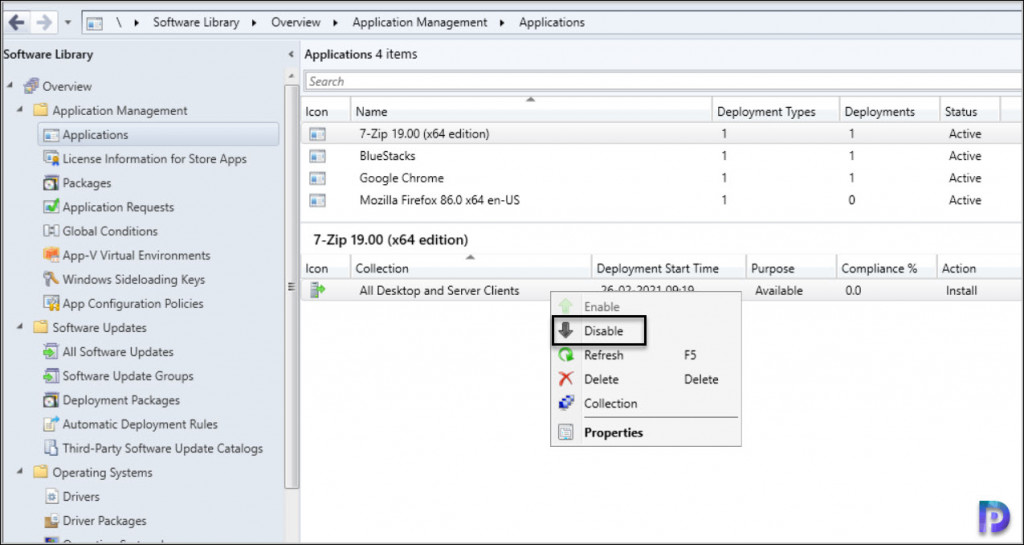
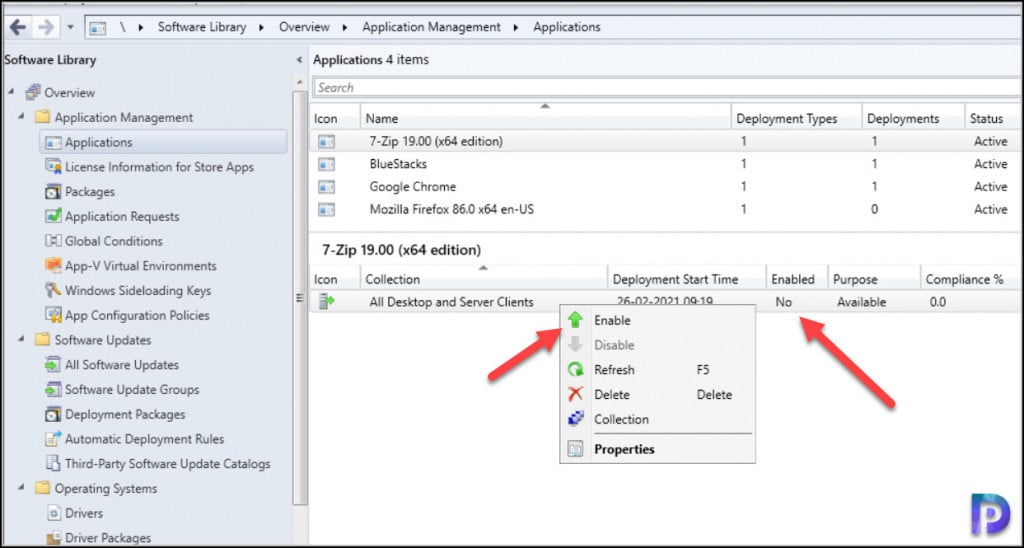
Once you have disabled an application deployment, the disable option is greyed out. To enable the deployment, right-click the deployment and select Enable. You may also manually add an extra column called ‘Enabled‘ which displays whether the application deployment is enabled or not in the console.
Disable SCCM Application Deployment using PowerShell
You can quickly disable SCCM application deployment using PowerShell using the deployment ID. Each application deployment has a unique ID, which is required if you are using PowerShell. See how to use PowerShell to list application deployments in SCCM for more details.
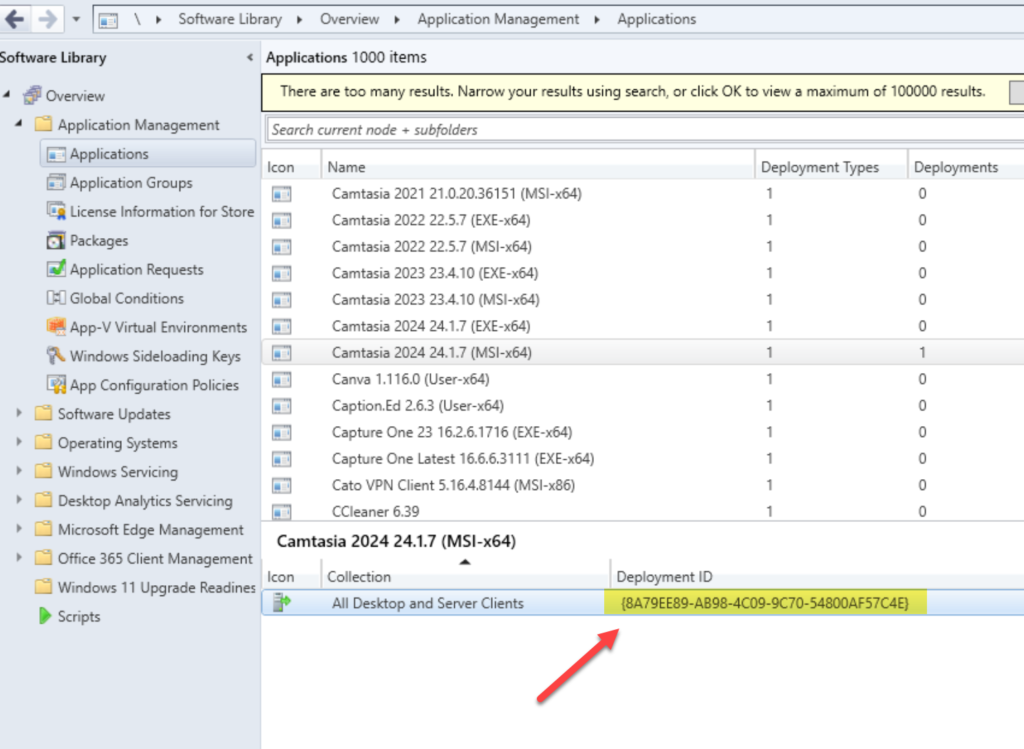
To locate the deployment ID of an app deployment, open the Configuration Manager console and navigate to Software Library > Applications. Select the application that has an active deployment. In the bottom pane, switch to the Deployments tab, where you can find the Deployment ID.
In the below image, the Camtasia app is deployed to All Desktop and Server Clients collection, and the deployment ID is {8A79EE89-AB98-4C09-9C70-54800AF57C4E}.
To run the configmgr cmdlets, open the console, and in the upper-left corner, there’s a blue rectangle. Select the white arrow in the blue rectangle and choose Connect via Windows PowerShell. Input the following commands in the specified sequence to deactivate the application deployment.
# Disable SCCM Application Deployment using PowerShell
$deployment = Get-CMApplicationDeployment -DeploymentId "{8A79EE89-AB98-4C09-9C70-54800AF57C4E}"
$deployment.Enabled = $false
$deployment.put()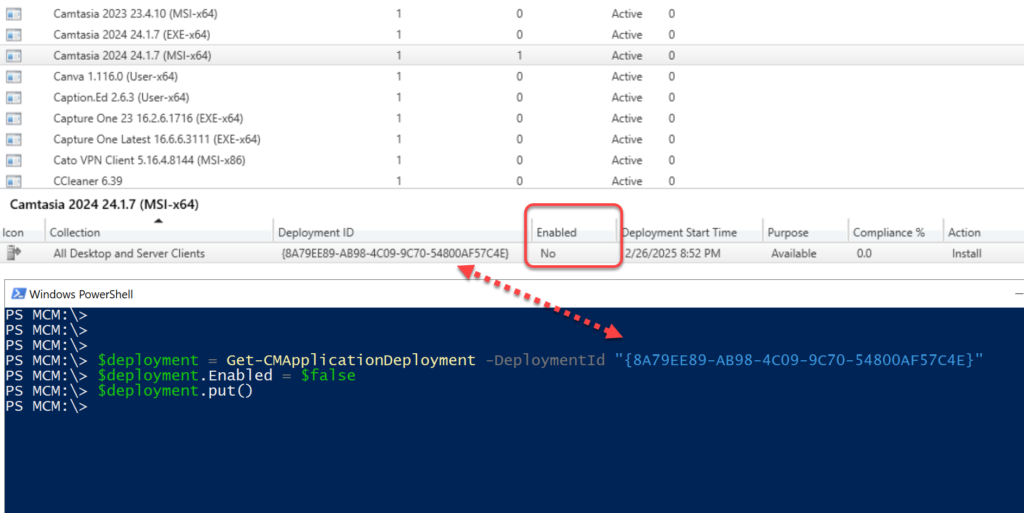
Actions available for other deployment types
In addition to disabling the application deployments, following are the other actions available for SCCM deployments.
| Deployment Type | Action |
|---|---|
| Software update deployments | Disable the deployment |
| Phased deployments | Suspend the phase |
| Package Deployment | Disable the program |
| Task sequence deployment | Disable the task sequence |
| Configuration baseline | Disable the baseline |
Application deployment cannot be disabled for user collection
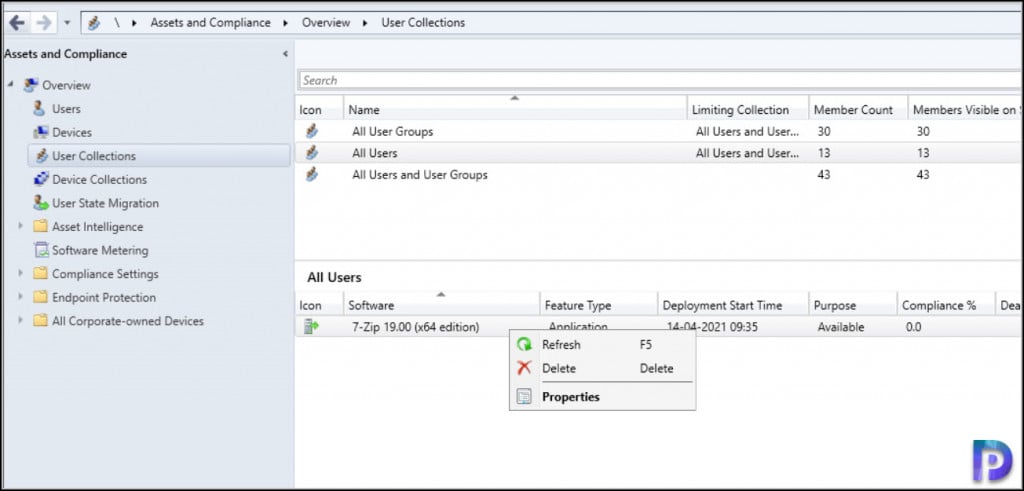
You cannot disable an available deployment of an application to an SCCM user collection. You can disable only required deployments for user collections or both required and available deployments for device collections.
Let’s test this. I’ve deployed an application to the All Users collection as available. However, when I right-click the deployment, the disable option is not accessible.
Supported scenarios for disabling app deployments
Microsoft simplifies the process of understanding supported scenarios for disabling app deployments. The following table summarizes the supported scenarios to disable app deployments:
| Application Deployment Purpose | Device Collection | User Collection |
| Available | Yes | No |
| Required | Yes | Yes |

Hey Prajwal,
Thanks for posting this.
Is this possible to do via PowerShell?
I notice there is no simple switch to set to $false, is this possible to do via WMI query, or some other lower level way?
Do you know if the module will be updated to include this ability to disable a deployment?
Thanks
I looked through the WMI objects and found this to be the way you could disable a deployment on an Application in MECM/SCCM via PowerShell
$MPServer = “”
$ApplicationName = “”
$SiteCode = “”
$CollectionName = “”
$Deployments = Get-WmiObject SMS_ApplicationAssignment -Namespace ROOT\SMS\site_$($SiteCode) -ComputerName $MPServer | Where-Object {$_.ApplicationName -eq $ApplicationName}
$SelectedDeployment = $Deployments | Where-Object {$_.CollectionName -eq $CollectionName}
$SelectedDeployment.Enabled = $False
$SelectedDeployment.Put()
Hi Prajwel,
I have a case that application installation keep on showing 0% downloading and all looks good that, no issues in locationservice log. Machine is well managed in boundaries as well.
Is the application content distributed to the DP ?.