In this blog post, I will cover different methods to find Owners of a distribution list and export the information to a CSV file. There are times when you may need to identify the owner(s) of a distribution group – for instance, to seek approval for access, request changes, remove yourself from the list, or report issues.
In many organizations, distribution lists are an efficient way to send emails to a group of people without manually entering each recipient’s name. For instance, you can create a distribution list for the IT team (ITSupport@example.com), including all IT members. Sending an email to this list ensures that every IT team member receives the message.
A distribution list can have multiple owners, and it is often advisable to designate more than one for redundancy. This is, in fact, a widely adopted best practice in most organizations for creating distribution groups. These owners are responsible for managing various aspects of the group, such as adding or removing members, overseeing membership, and adjusting other settings.
Distribution Lists vs. Security Groups
A Distribution List (DL), also known as a distribution group, is a collection of email addresses grouped under a single alias or an email address. A Security Group is a collection of user accounts used to manage permissions and access to resources within an IT environment, such as files, folders, applications, and shared devices. Distributions lists are primarily used to distribute messages whereas security groups that can be used to distribute messages and to grant access permissions to resources.
Note: You can combine the functionality of both DLs and security groups by using Mail-Enabled Security Groups. A mail-enabled security group acts as both a distribution list (for email communication) and a security group (for permissions management). For instance, converting a DL to mail-enabled security groups is generally the better choice if you plan to use them for SharePoint permissions.
Different ways to retrieve the ownership of distribution lists
Let’s go through some different ways to identify the owners of a distribution list.
Method 1: Find Distribution List Owners using Microsoft 365 Admin Center
Here’s how you can identify the owners of a distribution list from M365 admin center:
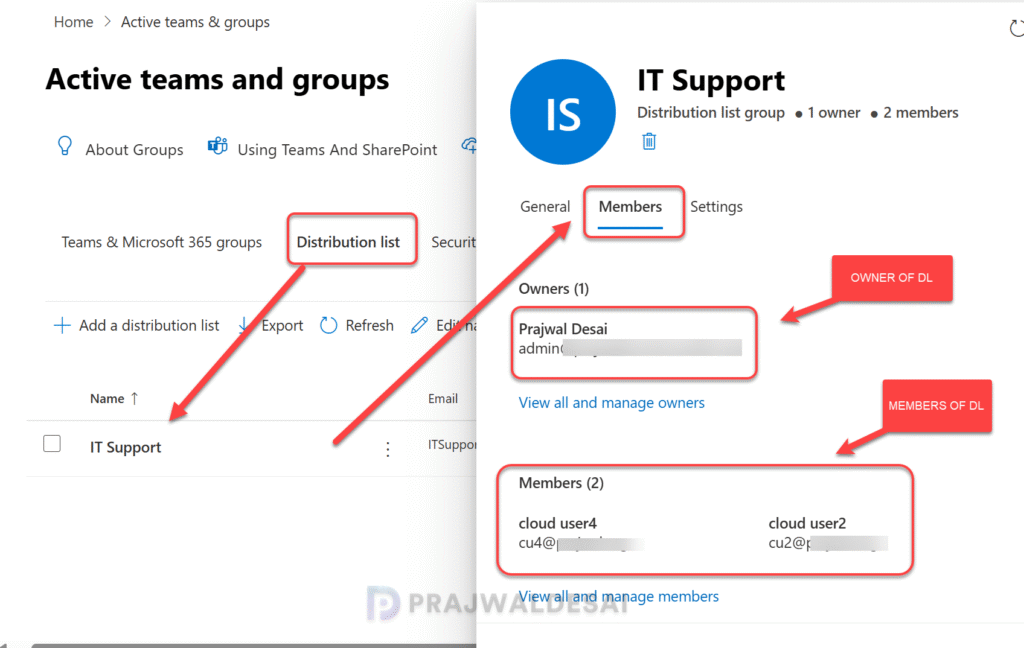
Sign in to Microsoft 365 Admin Center. Under Teams & Groups, select Active Teams & Groups. Switch to Distribution list tab and select the distribution list and click on Members tab. All the owners of the distribution group will be listed under the Owners section. The Members section shows the users who are a part of this DL.
Method 2: Find Owners of a Distribution List using Exchange Admin Center
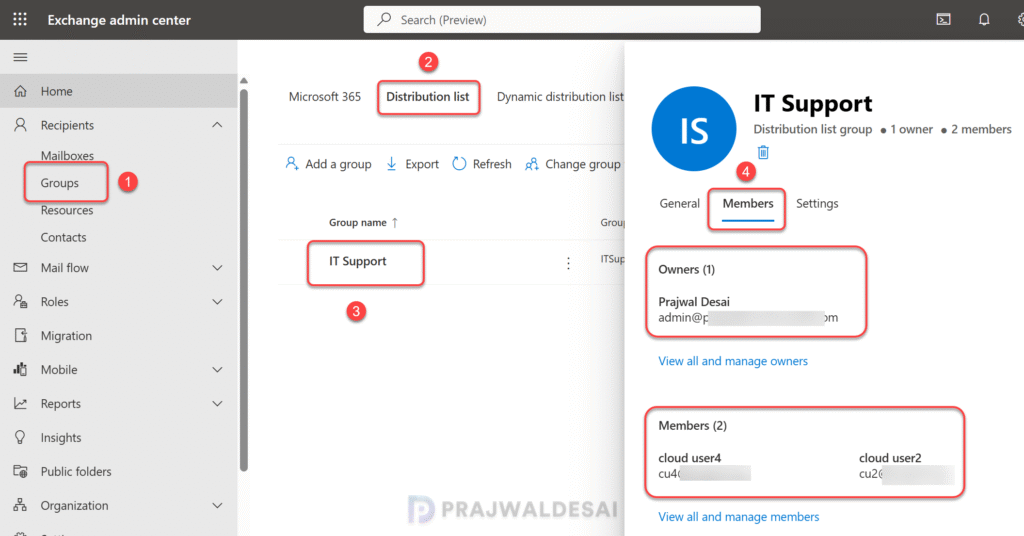
Sign in to Microsoft Exchange admin center with your credentials. In the left-hand menu, select Recipients > Groups. Search for the distribution list in the Groups section. In the Distribution list tab, select the distribution list, and the owner(s) will be displayed in the Owners section.
Method 3: Find Owners of a Distribution List in Outlook
If your organization uses Microsoft Outlook, users can easily find the owners of a distribution list by following these steps.
Launch the Outlook app and in the Home tab, click on Address book. The address book icon in the new Outlook app is challenging for users to locate. In this case you can use the keyboard shortcut Ctrl+Shift+B to quickly launch the Outlook Address Book.
In the Address Book window, type the name of the distribution list in the search bar. Right-click the distribution list and select Properties as described in the below image.
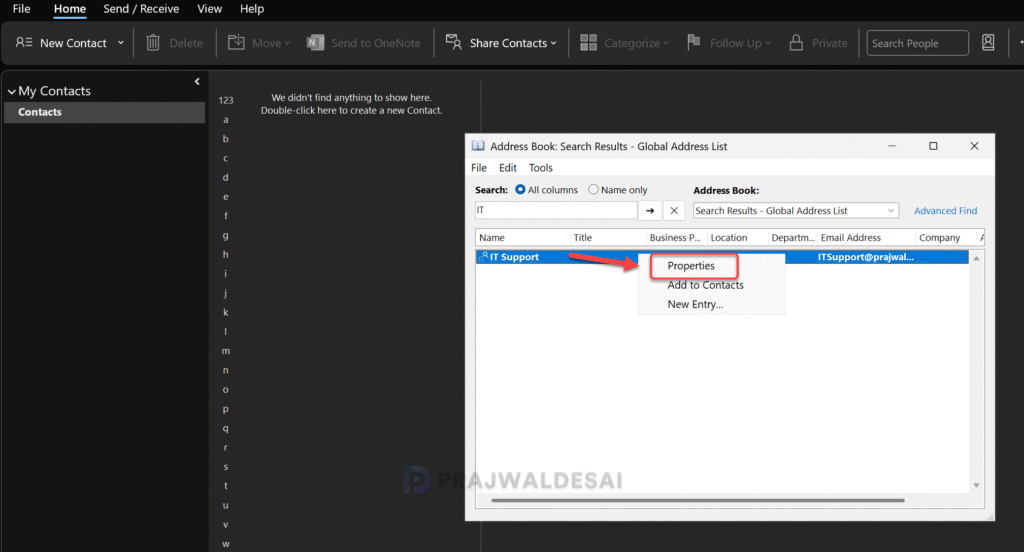
In the General tab of the distribution list properties, the owner of the DL is displayed including the members who are part of this group. The Outlook user can now email the owner directly for any queries or requests related to the distribution list.

Method 4: Find Owners of a Distribution List using PowerShell
If you’re an IT admin with access to PowerShell, you can use it to find the owners of a distribution list using Get-DistributionGroup PS cmdlet.
Step 1: Install Exchange Online PowerShell Module
Right-click on the PowerShell icon and select “Run as administrator.” Run the below cmdlet to install the module from the PowerShell Gallery.
Install-Module -Name ExchangeOnlineManagement
Step 2: Connect to Exchange Online
After the module is installed, you can connect to Exchange Online using the Connect-ExchangeOnline cmdlet. Sign in with work credentials and authenticate to connect to Exchange online.
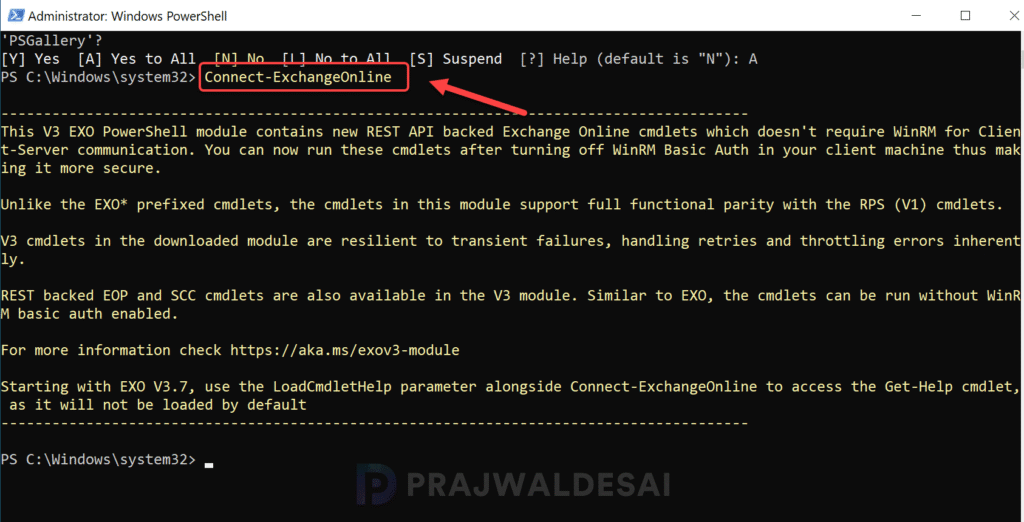
Step 3: Get Distribution Group Owner Information
To retrieve the owner(s) of a specific distribution group, run the below command. Ensure you replace “YourDistributionGroupName” with the actual name or alias of your distribution group in the below command.
In the below example, the ‘ManagedBy‘ column shows the distribution group owner name via Exchange online.
Get-DistributionGroup -Identity "YourDistributionGroupName" | Select-Object Name, ManagedBy
Run the below command to find the owners of all the distribution groups and mail-enabled security groups whose names contain the string “Support” and displays the group owners. The –Anr parameter specifies a string on which to perform an ambiguous name resolution (ANR) search.
Get-DistributionGroup -Anr support | Format-Table Name, ManagedBy -AutoMethod 5: Use Third-Party Tools to Identify Distribution List Owners
There are third-party tools available that can help manage and retrieve information about distribution lists ownership and members. There are many such tools available online but some of the popular tools that I have worked on include:
- SolarWinds: This tool provides detailed insights into Office 365 and Exchange environments.
- ManageEngine M365 Manager and AD Manager Plus: With these tools, you can efficiently manage and report on Active Directory groups and distribution lists.
Export All Distribution Groups with Owners to a CSV File
Exporting distribution groups from exchange online and on-prem servers with their owners to a CSV file is a straightforward process using PowerShell. This method is highly efficient for managing and auditing distribution groups in your environment.
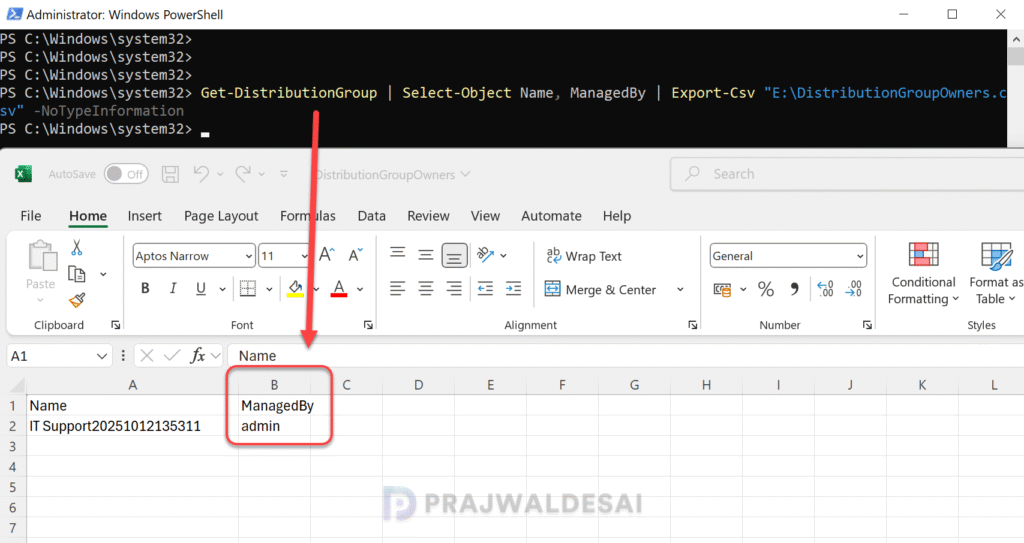
The below PowerShell command retrieves all distribution lists, selects their names and managed-by properties, and then exports the information to a CSV file named DistributionGroupOwners.csv in the E:\ directory. The Export-Csv parameter exports the data to a CSV file at the specified path.
Get-DistributionGroup | Select-Object Name, ManagedBy | Export-Csv "E:\DistributionGroupOwners.csv" -NoTypeInformationAfter running the above command, navigate to the location where the CSV file was saved. Open the file in Excel app and this file will have two columns:
- Name: The name of the distribution group.
- ManagedBy: The names of the owners associated with the group.